 surtly
Wholesale coffee and franchise supplies
Combine a public coffee warehouse with private supplies for franchise clients.
The business situation
You sell coffee to external customers and supply your franchise locations with cups, lids, and cleaning products. You want separate inventory and ordering access, within the same provider account.
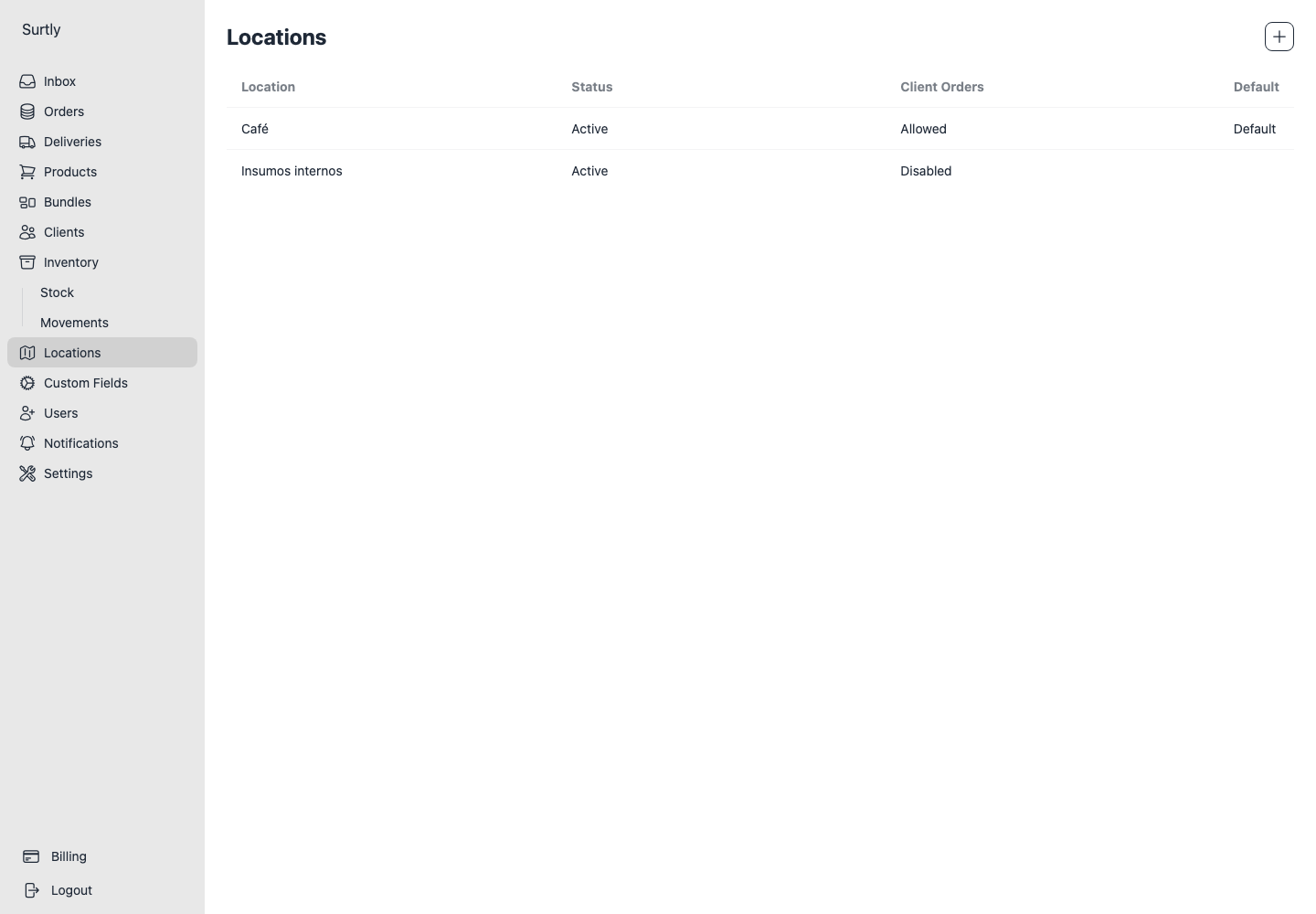
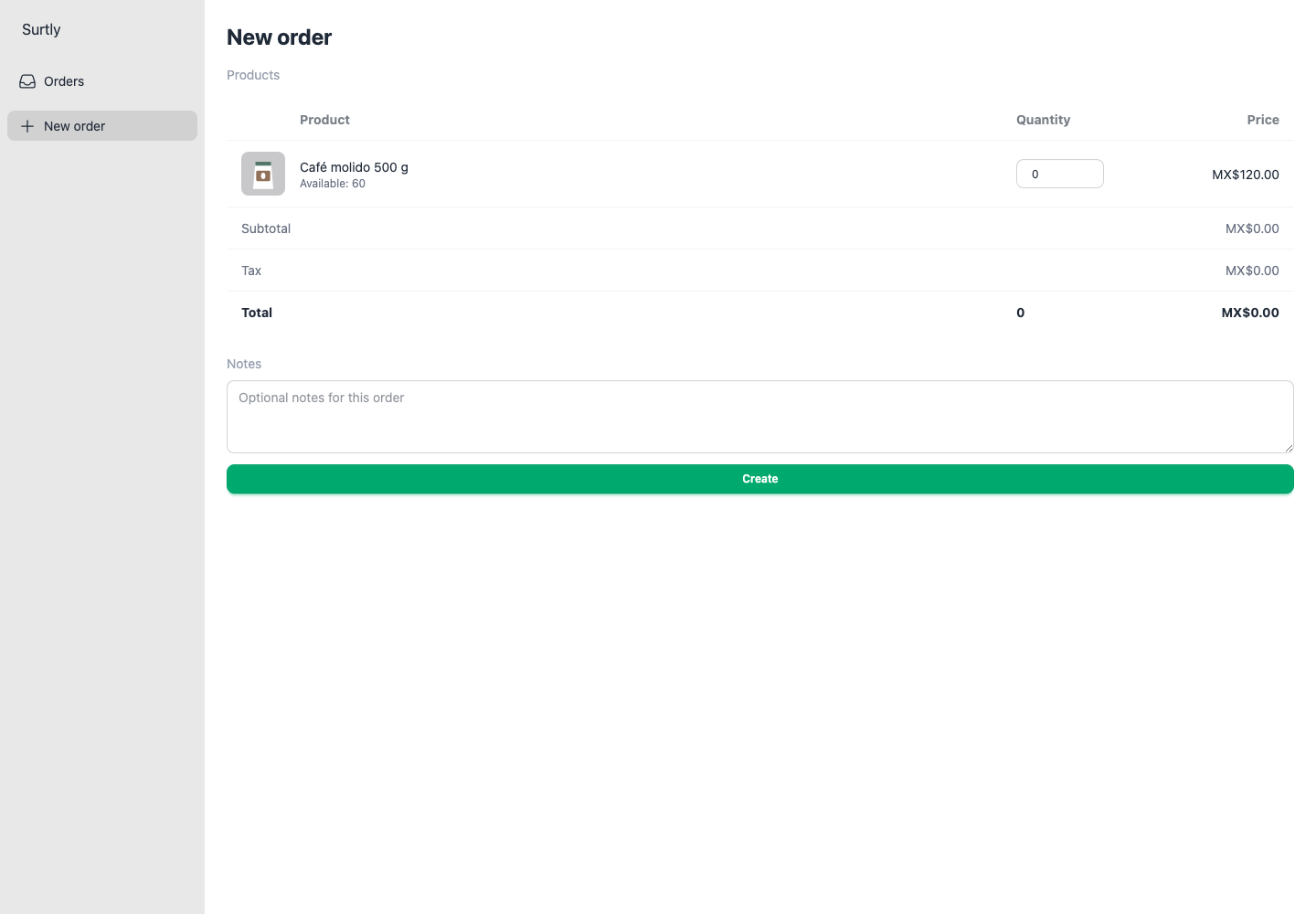
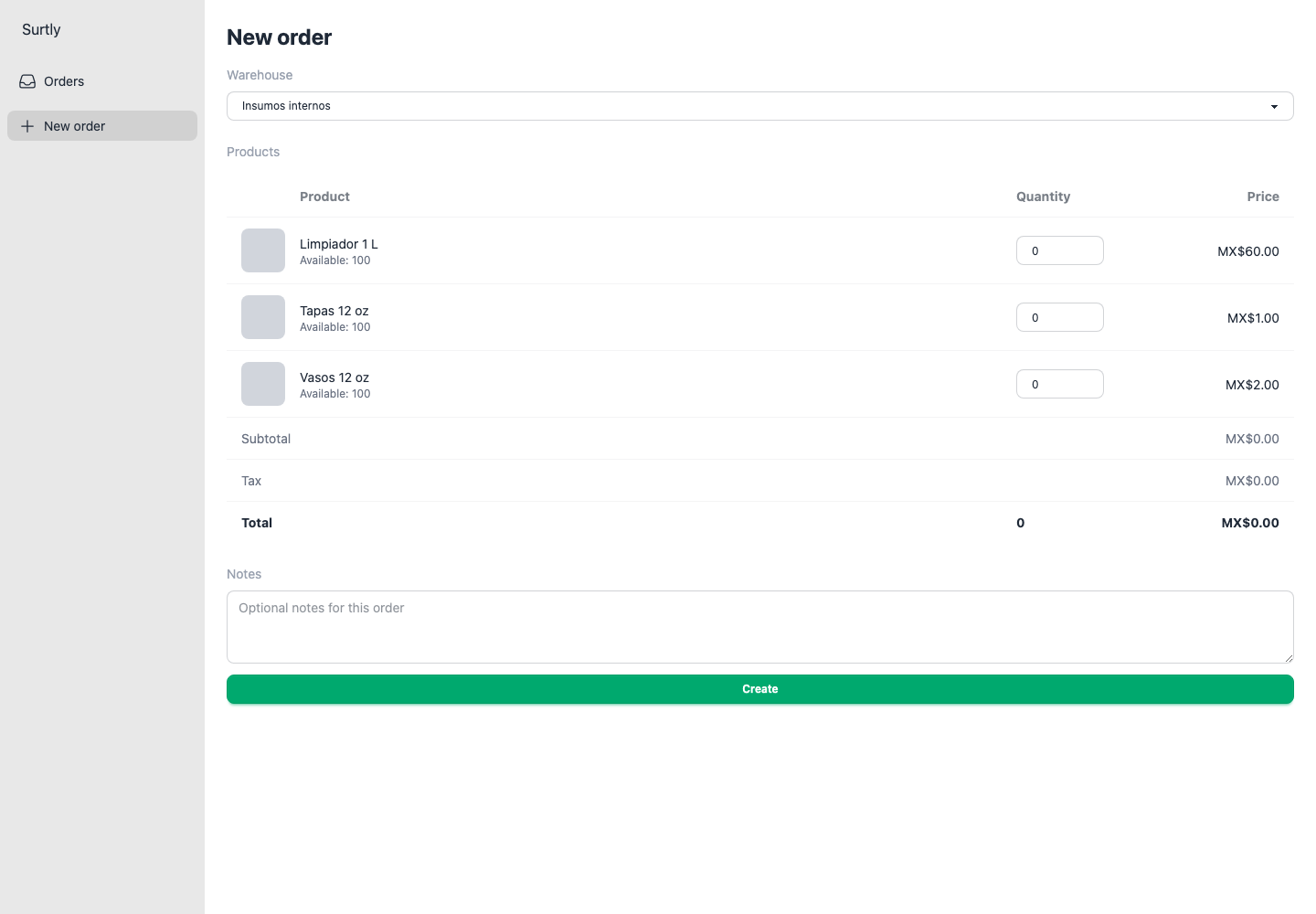
In this example, Café Alba is an external customer and Franquicia Jardín is a franchise. Both client relationships are active. Warehouses are called Café and Insumos internos in the screenshots.
| Client | Coffee warehouse | Internal supplies warehouse | Starting warehouse |
|---|---|---|---|
| Café Alba | Available | Unavailable | Café |
| Franquicia Jardín | Available | Explicit access grant | Insumos internos |
Create a public and a private warehouse
- Open Locations → + and create Café, with invoice code CAF and Allow Client Orders enabled.
- Open the saved warehouse and turn on Default. This is the provider's default.
- Create Insumos internos, with invoice code INT and Allow Client Orders disabled. Keep the warehouse active.
Both warehouses can hold stock. The private setting controls client access, not whether the warehouse is operational. See warehouse settings.
Restrict products to their warehouse
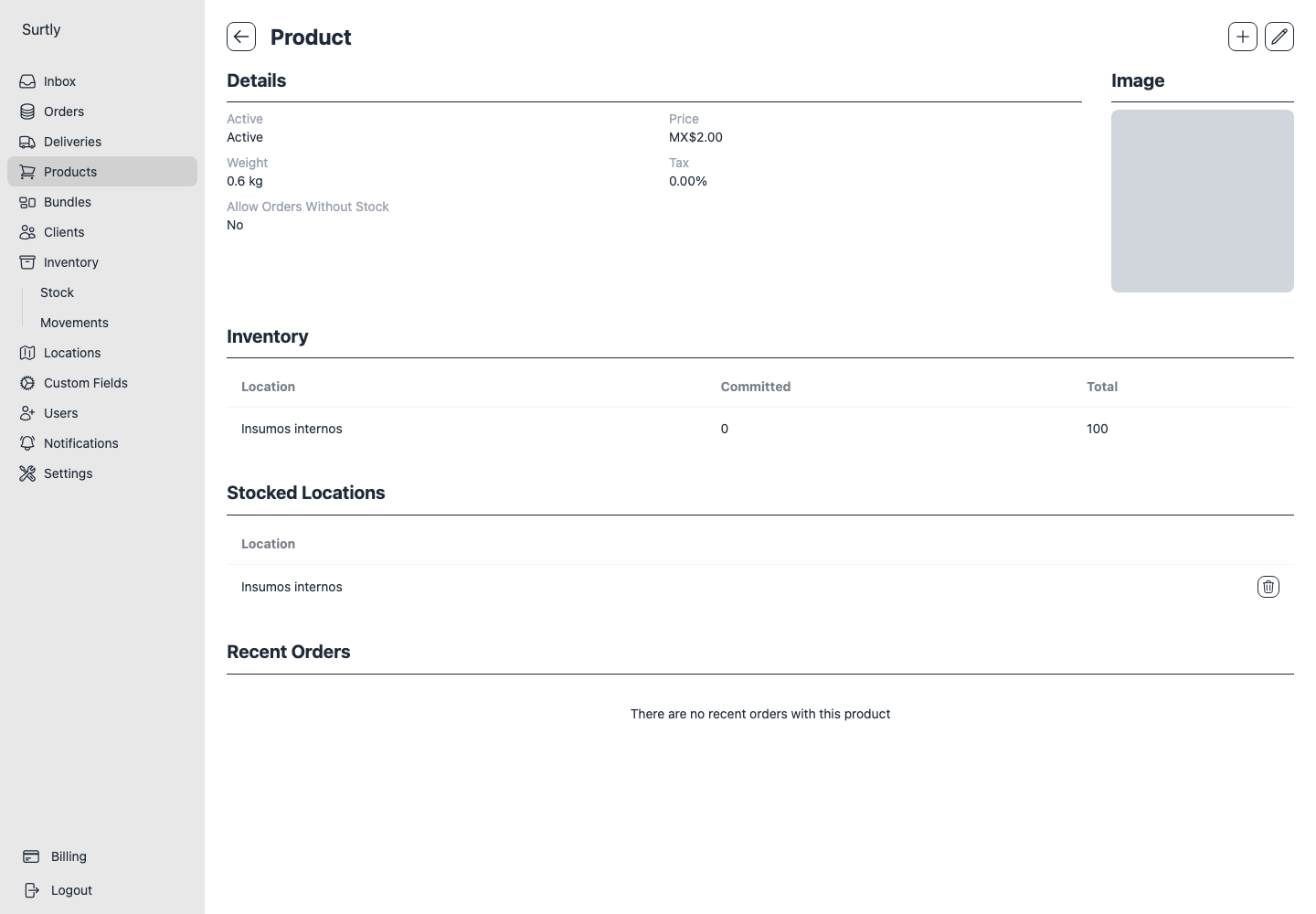
Create your products, then open each one and use + → Stocked Location if its Stocked Locations section is not yet visible. Assign coffee products only to Café and cups, lids, and cleaning products only to Insumos internos.
Keep these products active. You do not need a Custom Availability grant for this setup: warehouse access and product location scope provide the ordering restrictions. Leave Allow orders without stock off for this example, then record incoming stock in the corresponding warehouse.
An empty location list means all warehouses
Adding stock to one warehouse is not the same as restricting a product to it. Set Stocked Locations explicitly. Removing the final assignment makes all warehouses eligible again; it does not disable the product. See product location scope.
Give the franchise access and a default
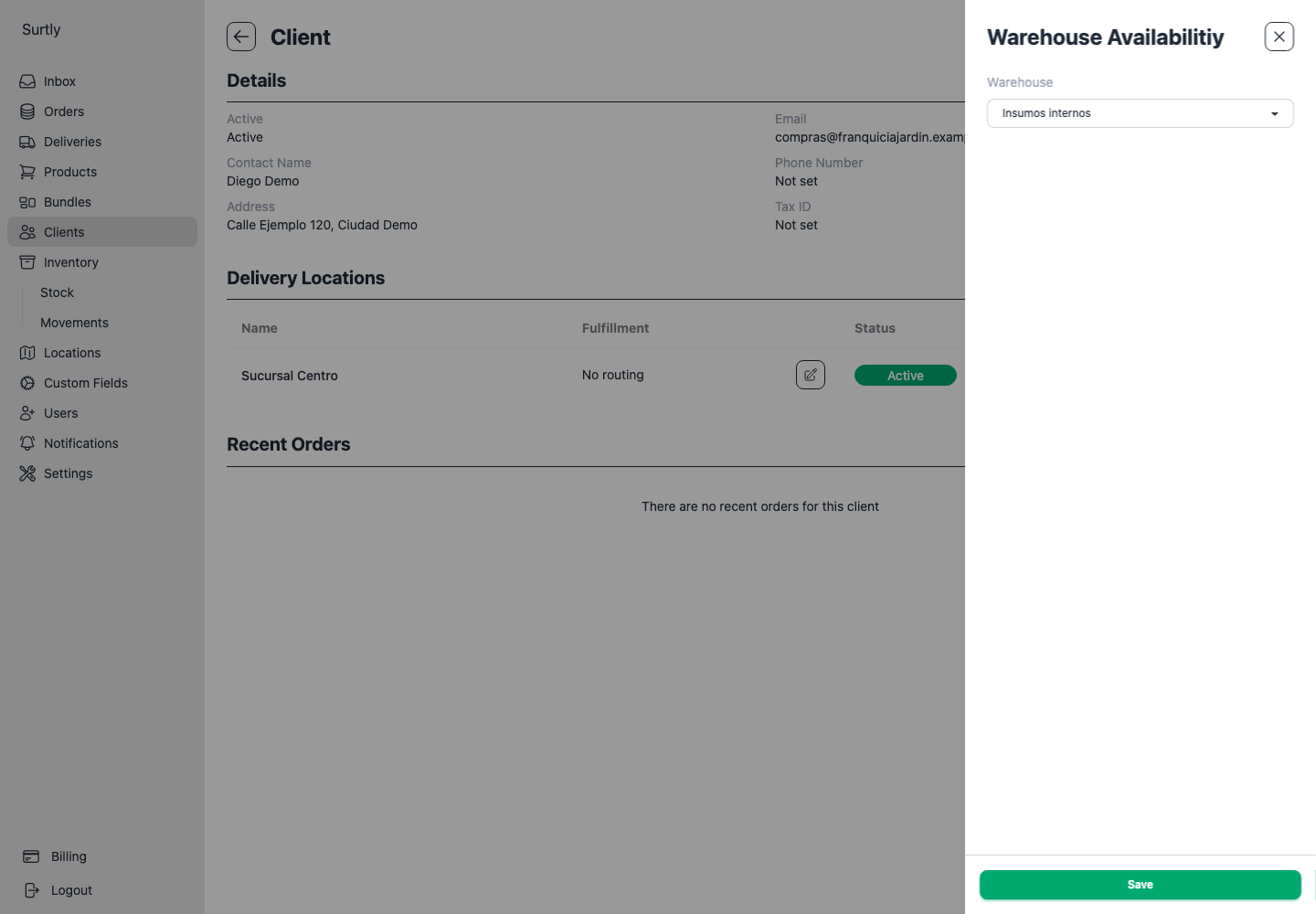
- Open Clients → Franquicia Jardín → + → Warehouse Availability.
- Choose Insumos internos and save. Repeat for each franchise that should have access.
- Edit the franchise client, set Default Warehouse to Insumos internos, and save.
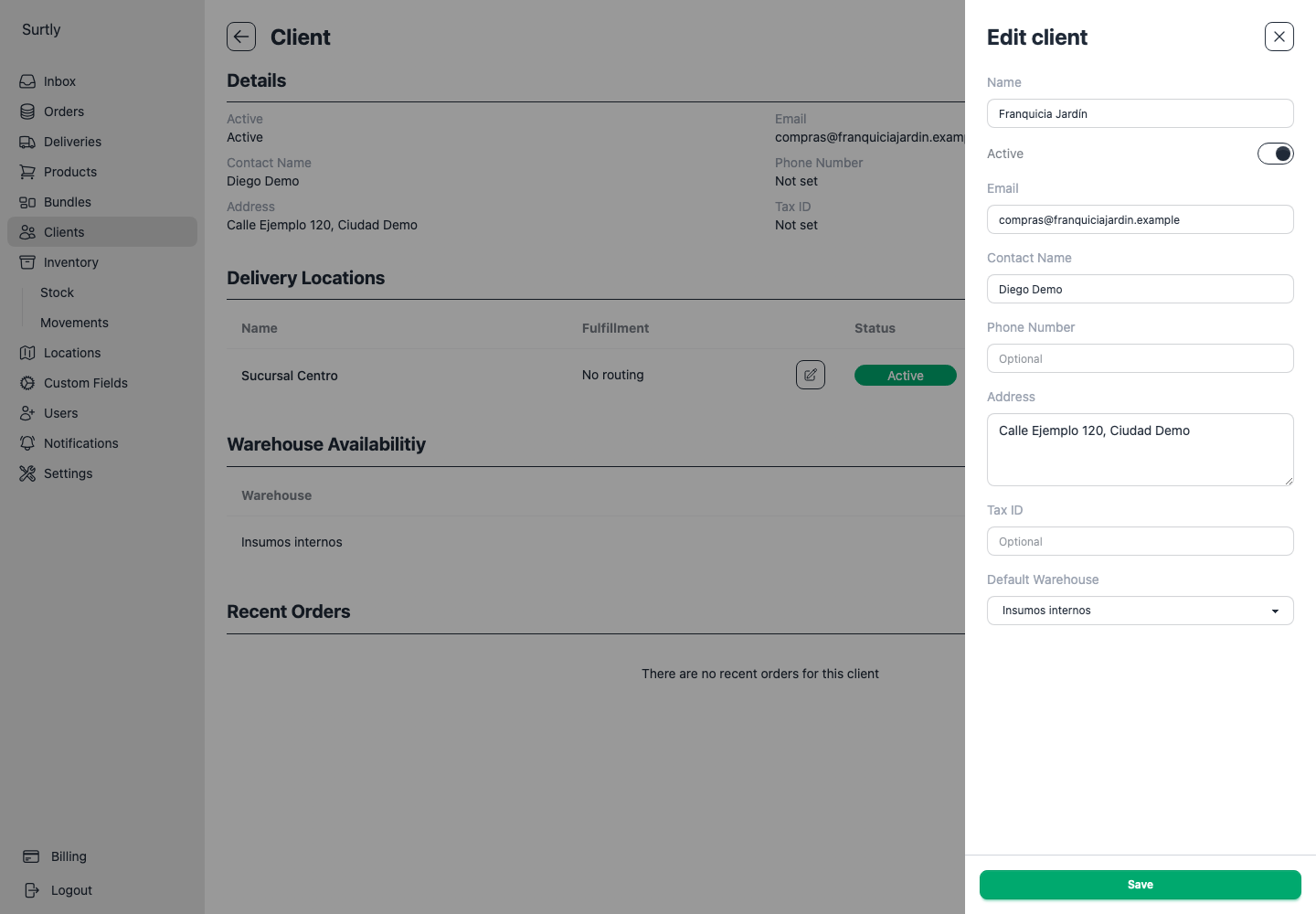
For Café Alba, leave the client default at Provider public default warehouse and do not grant internal warehouse access. In this example, delivery addresses have no fulfillment route. A routed address would take precedence and lock the warehouse choice; use address routing only if that is intended.
You can add a Client Type dropdown with External and Franchise values to organize the clients. This custom field is a label and filter; it does not automatically grant warehouse access. Batch custom availability grants products, not warehouses.
Verify what each client can order
Use each client's ordering link to inspect the result before sharing it. Do not submit an order just to check the configuration. Provider staff can explicitly select private warehouses, so a staff-created draft does not prove the client's access restrictions.
| Check | Expected result with this setup and positive stock |
|---|---|
| Open Café Alba's new order | Coffee is offered; internal supplies and the internal warehouse are unavailable. |
| Open Franquicia Jardín's new order | Insumos internos is selected and internal supplies are offered. |
| Change the franchise's Warehouse to Café | Coffee replaces the internal supply selection. Re-enter quantities after switching. |
Adapt the setup
If franchises must not access coffee, make Café private too and grant each client only the intended warehouse. A public warehouse is available to both groups; a client default does not exclude the other warehouse. When changing an existing public warehouse to private, follow the steps to restore affected defaults and routes.
Each order uses one warehouse. A franchise needing coffee and internal supplies places two orders in this setup. Surtly does not combine stock or split a single order between the warehouses.
Warehouse selection does not create a separate price list. Use client-specific prices or assigned volume schedules if a franchise pays a different price. For products reserved for selected clients within the same warehouse, see a selected catalog with negotiated prices.