 surtly
Supply branches from different warehouses
Route one client's delivery addresses to different fulfillment warehouses.
The business situation
Café Alba orders for two branches. Sucursal Centro should be supplied by Almacén Centro, and Sucursal Jardín by Almacén Norte. Keep one client record with two delivery addresses when both branches share that client's catalog, prices, and ordering link.
| Delivery address | Fulfillment warehouse | Access in this example |
|---|---|---|
| Sucursal Centro | Almacén Centro | Public |
| Sucursal Jardín | Almacén Norte | Private, explicitly granted to Café Alba |
If the branches need different negotiated prices or independently managed ordering links, use separate client records instead. Custom prices and the client default belong to the client relationship, not to each address.
Prepare access and inventory
- Create and activate both warehouses. Make Centro the public provider default and Norte private.
- Open Café Alba and grant Warehouse Availability for Norte. Save the grant before configuring its route.
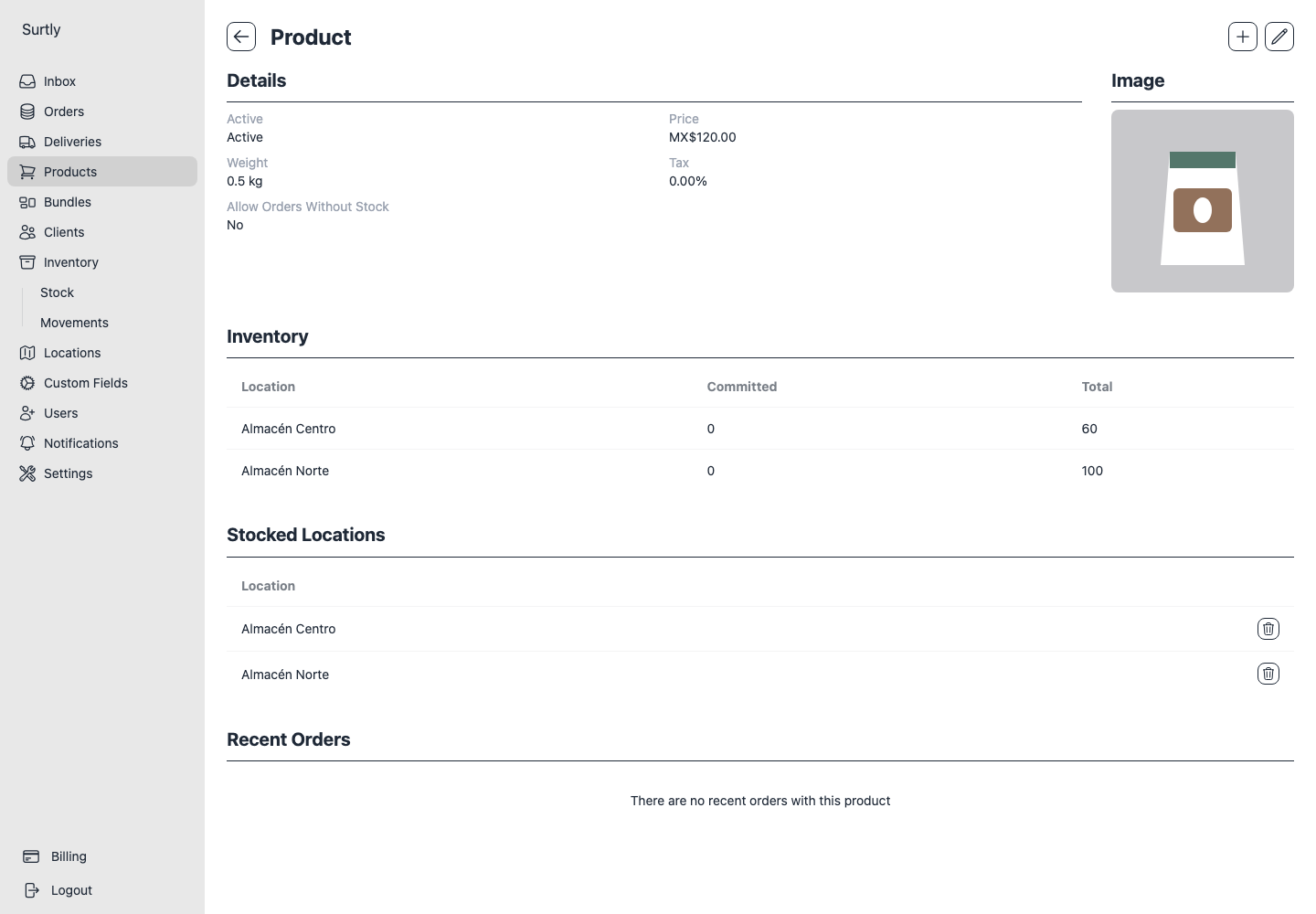
- Assign products sold at both branches to both warehouses through Stocked Locations.
- Record the stock held in each warehouse. Assigning a product to Norte does not move stock from Centro.
Route the two delivery addresses
Open Clients → Café Alba. Add active Delivery Locations named Sucursal Centro and Sucursal Jardín with their real addresses and contact details. In each address row, use the pencil in the Fulfillment column to choose and save its warehouse.
Keep Café Alba's Default Warehouse at Centro for unrouted orders. The saved address routes override that default when the client selects a branch.
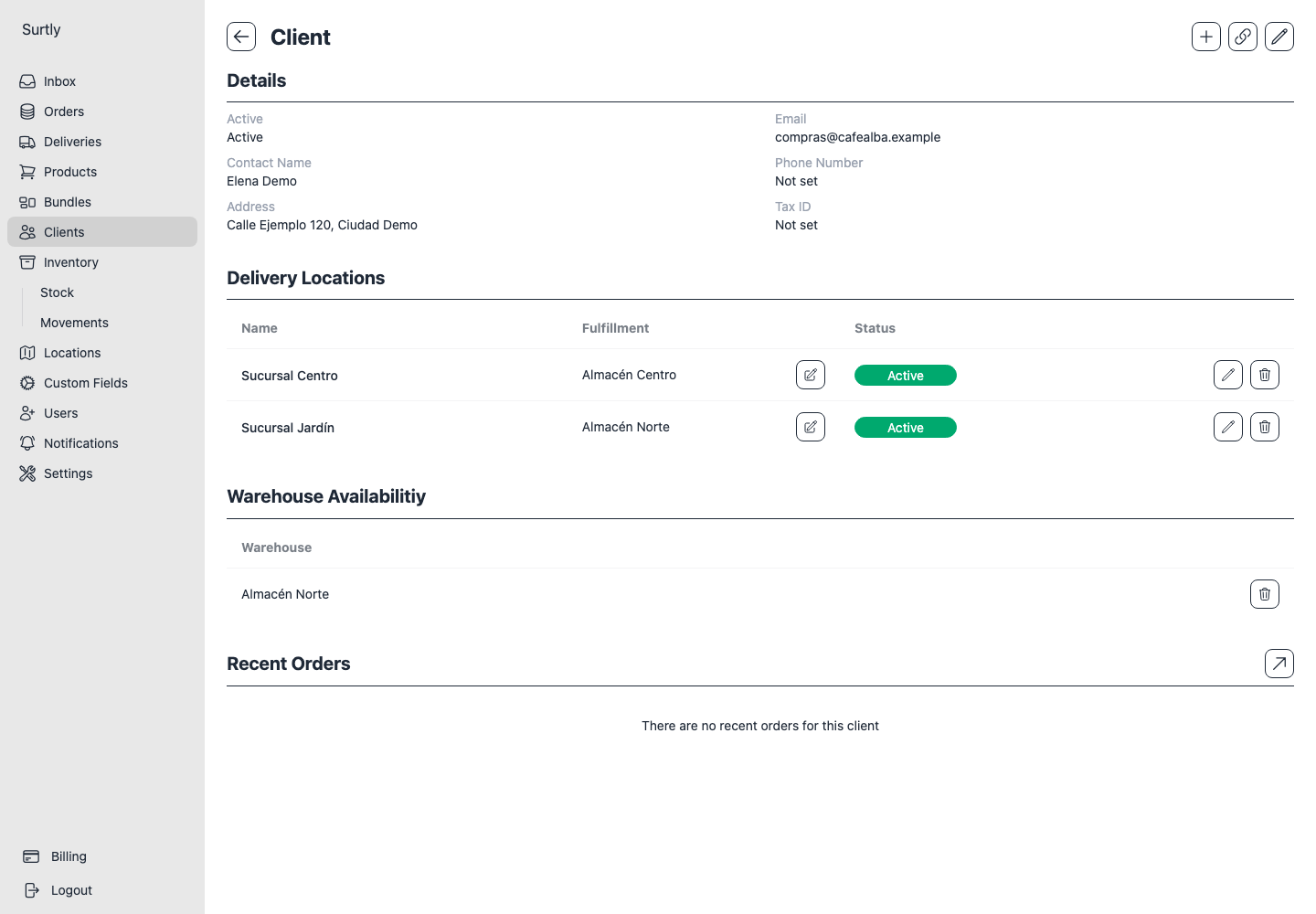
See delivery-address routing for the exact edit and removal controls. A route never grants access to a private warehouse on its own.
Verify the client result
Open Café Alba's ordering link and start a new order. With two active addresses, select the delivery branch first.
| Selection | Expected result |
|---|---|
| Sucursal Centro | Products use Centro stock. The warehouse choice is locked by the route. |
| Sucursal Jardín | Products use Norte stock, overriding the client default. The warehouse choice is locked. |
| A product has no available stock at Norte | With Allow orders without stock off, it is unavailable there even if Centro has stock. |
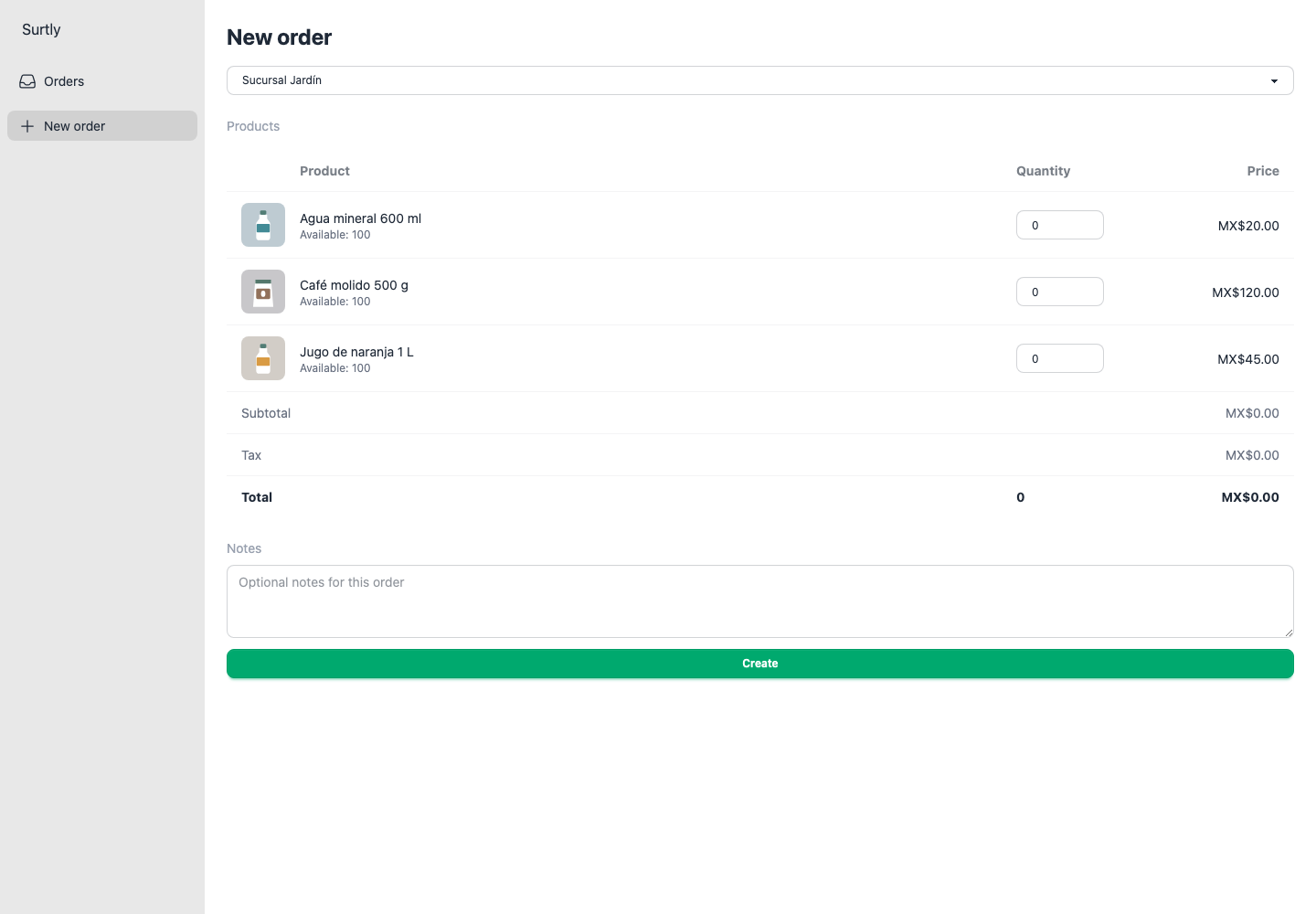
Do this check through the client link: staff creating an order can explicitly choose a different active warehouse. Do not submit a test order unless you intend to create an actual order.
Keep routes accurate
An order has one delivery address and one warehouse. Place separate orders for the two branches. Surtly does not pool their stock or select Centro automatically when Norte is short.
Before closing a warehouse, reassign or remove its address routes; routes block deactivation. Removing access to a private warehouse clears that client's affected routes and defaults. A later access grant does not restore them automatically.
Changing a route affects future order selection. Saved orders retain their delivery-address snapshot; editing an address does not rewrite existing orders. See warehouse maintenance and order processing.