 surtly
Delivery addresses
Save delivery destinations and route them to a warehouse.
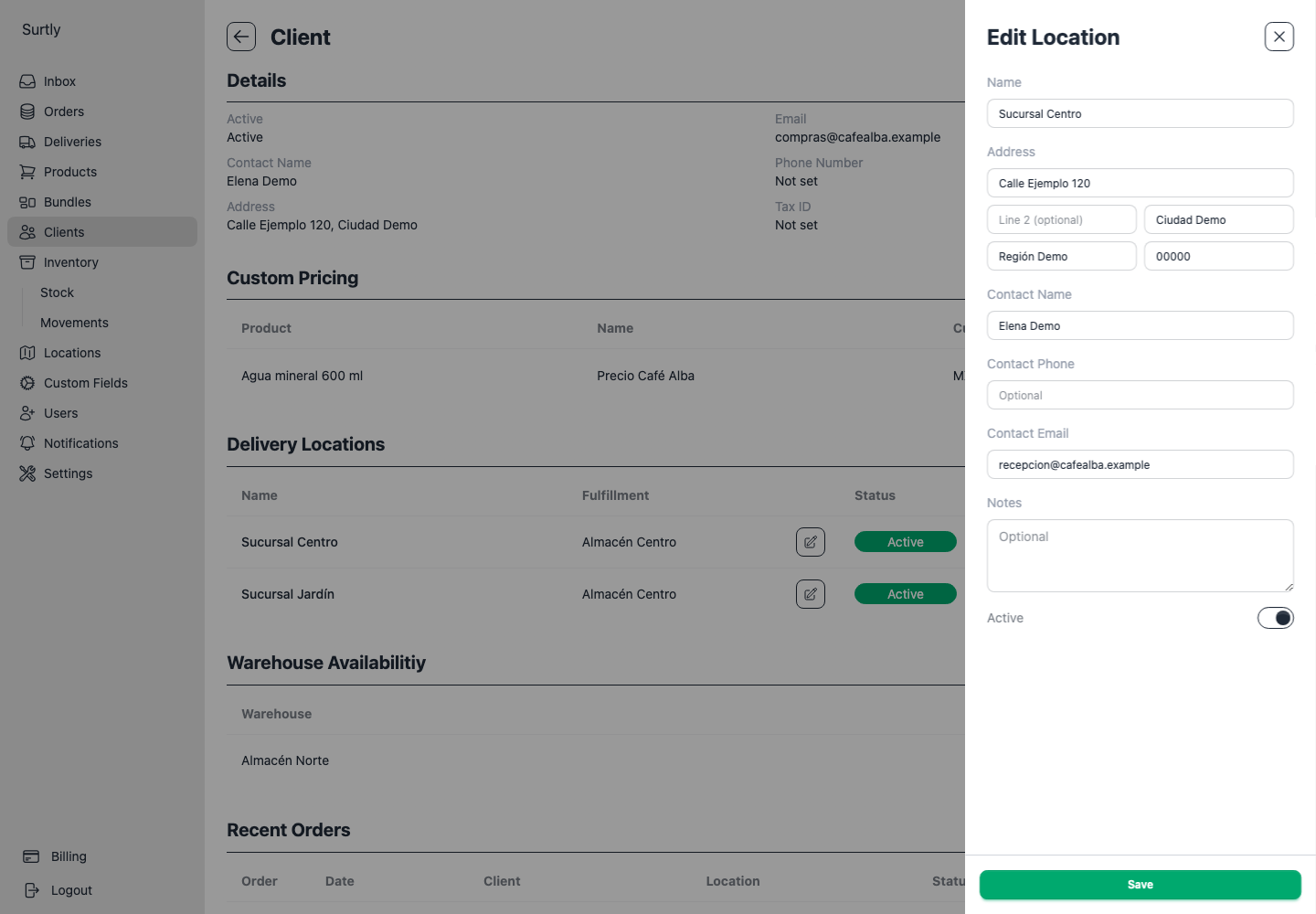
Add a delivery address
Open the client, then add a Delivery Location using its section or the + menu. Give it a recognizable name, enter its address and optional contact details or delivery notes, set Active, and save. Use the pencil at the right of an existing address row to edit its details or change Active. To delete the address, use the row's trash button.
A delivery address is where goods go. A warehouse is where inventory is held. Creating one does not create the other.
Route an address to a warehouse
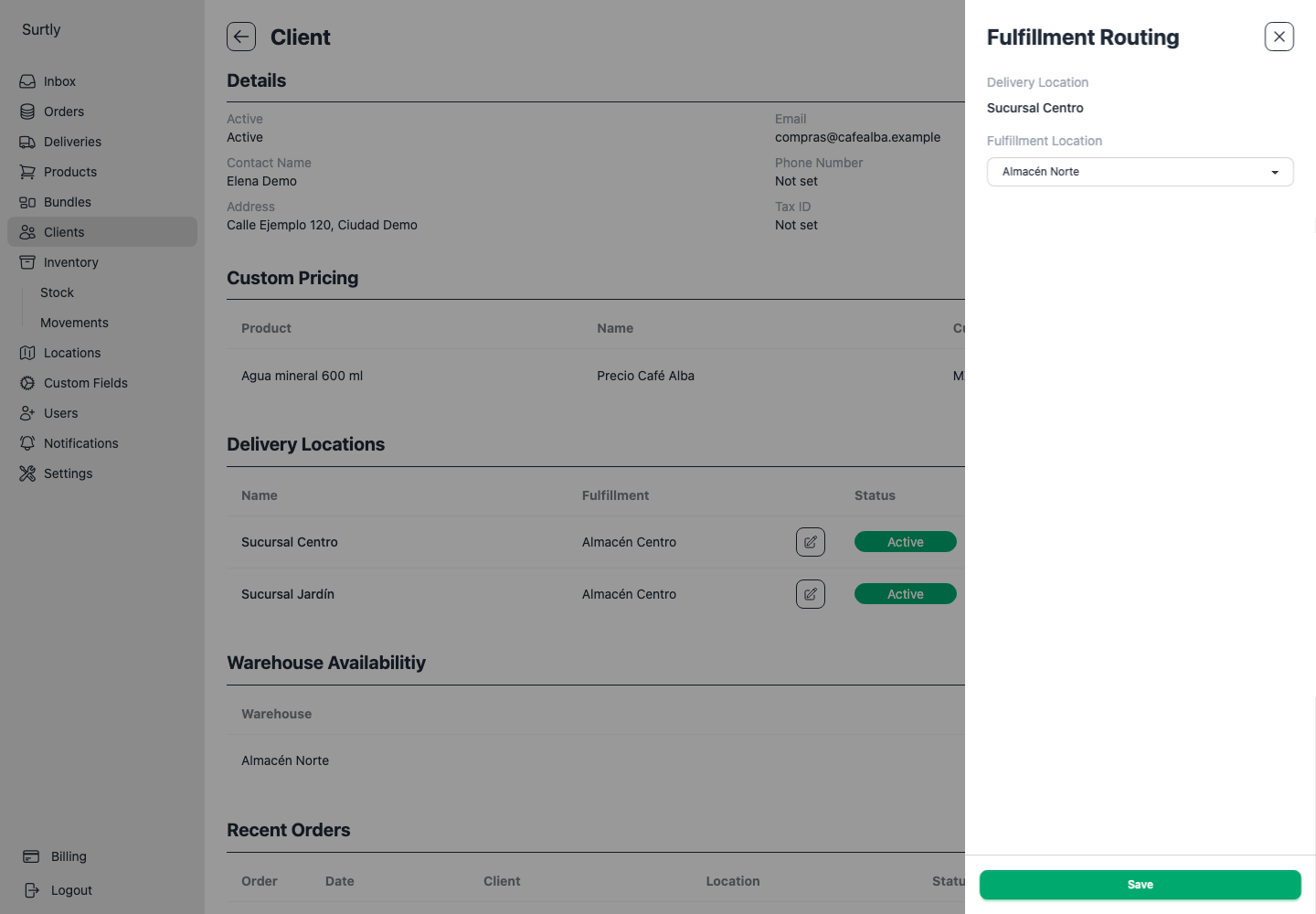
Use the pencil in the address row's Fulfillment column to open Fulfillment Routing, choose a warehouse, and save. The warehouse must be active and already available to the client. A route does not grant access to a private warehouse; grant that access first.
One address has one route for this provider. Several addresses may share a warehouse. Use the same fulfillment pencil to change the warehouse. To remove a route while keeping the address, open Locations → the assigned warehouse with Admin access and use the trash button in its Fulfillment Routing table.
Understand address selection
With one active address, the order form selects it automatically. With several, an address must be selected. A client with no active addresses can still have an order without a saved delivery address.
In client ordering, an eligible address route takes precedence and locks the warehouse selector. Staff entering an order can choose an active warehouse explicitly; changing the delivery address does not override that staff selection.
Submitted orders keep a snapshot of their delivery address and contact information. Editing or deleting the address later does not rewrite those orders.