 surtly
Custom product availability
Offer selected products to individual clients, a filtered group, or all clients.
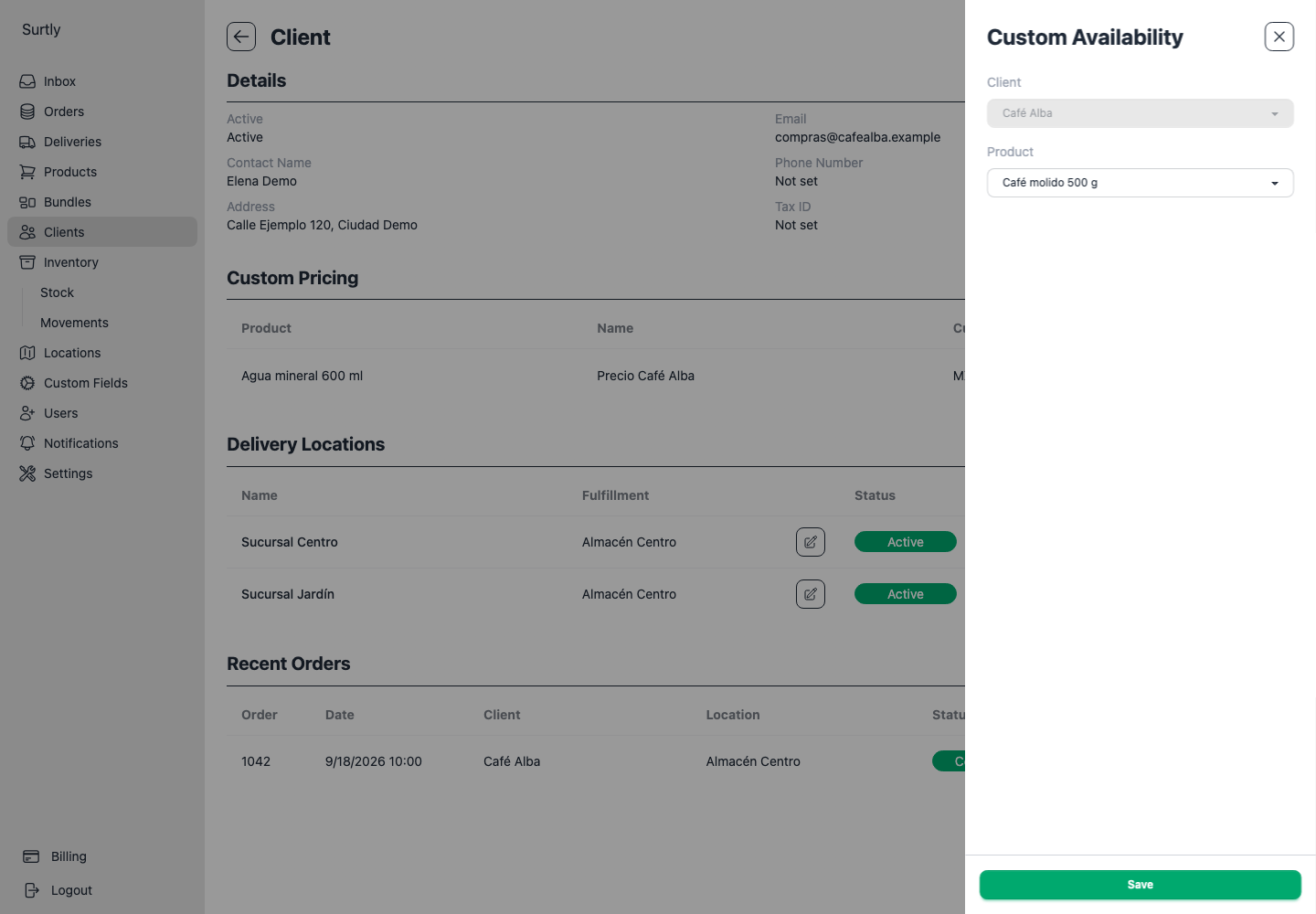
Add an individual grant
Open the client detail and add Custom Availability from + if needed. Select the client/product pairing and save. Remove the pairing when the exception is no longer needed.
Active products appear in the normal catalog. A custom availability grant can expose an inactive product to that client. Removing a grant does not hide a globally active product. This controls the catalog; warehouse scope and stock still apply.
When staff create an order, change the Status filter from Active to All Products or Inactive to see an inactive product with a grant.
Apply availability in bulk
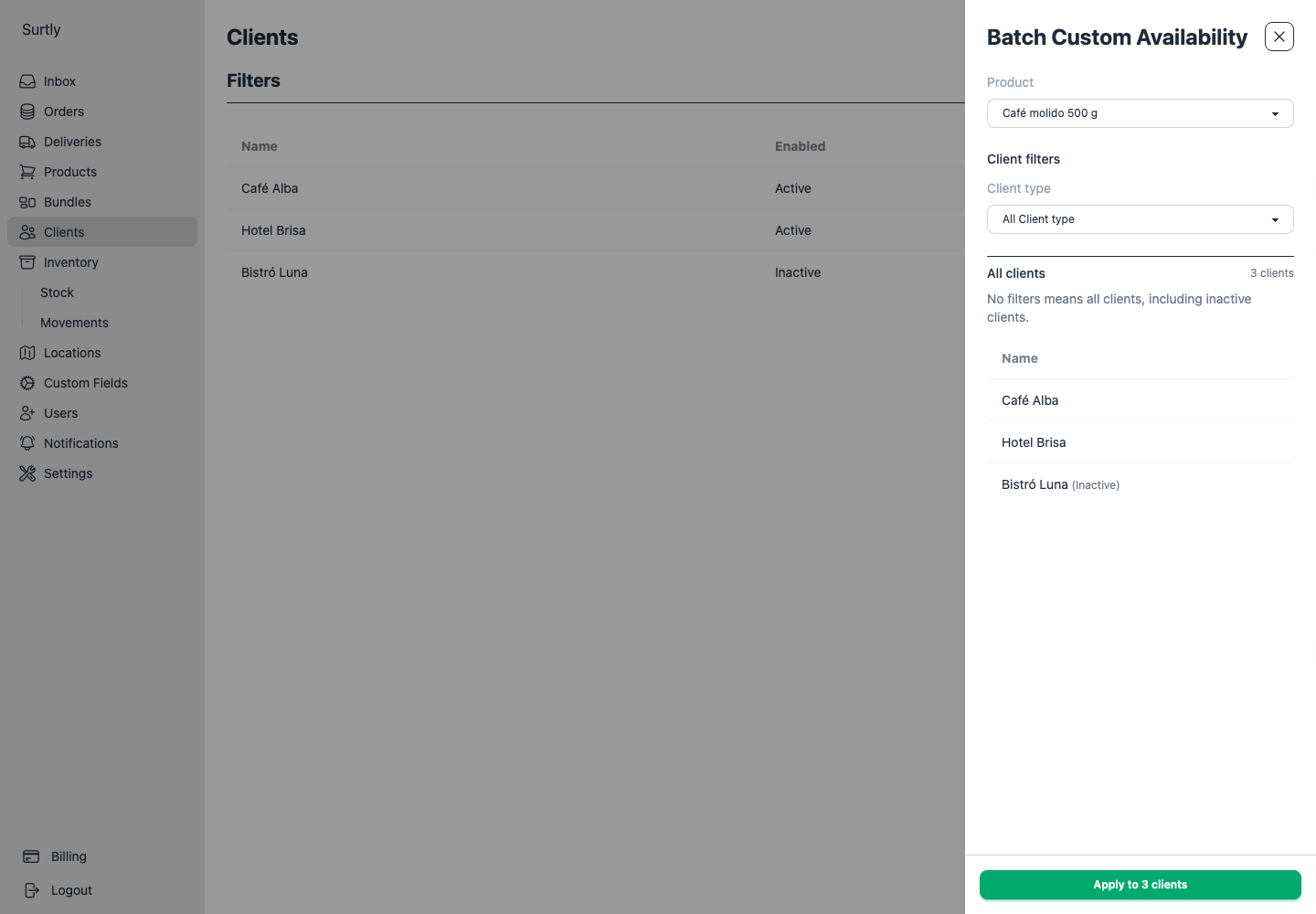
- Open Clients → Batch custom availability.
- Select the product to offer.
- Leave filters empty to target all clients, including inactive clients, or narrow the group with Yes/No or Dropdown custom-field filters.
- Review the preview's client names and count, then choose Apply to N clients.
No filters means all clients. Clearing the last filter restores the full preview. The batch drawer has its own filters; client-list filters are not automatically carried over.
Apply stays disabled until you select a product and the preview finishes with at least one matching client. If loading fails, use Retry. Changing a filter refreshes the preview before you can apply.
Existing grants are skipped. This adds availability; it does not replace other grants or reactivate inactive clients.
Bundles have a separate availability assignment. Custom product availability does not grant a bundle or allow an inactive client to order.
For a complete example combining availability and pricing, follow selected products and negotiated prices.