 surtly
Manage products
Create products and maintain their price, weight, tax, and photo.
Create a product
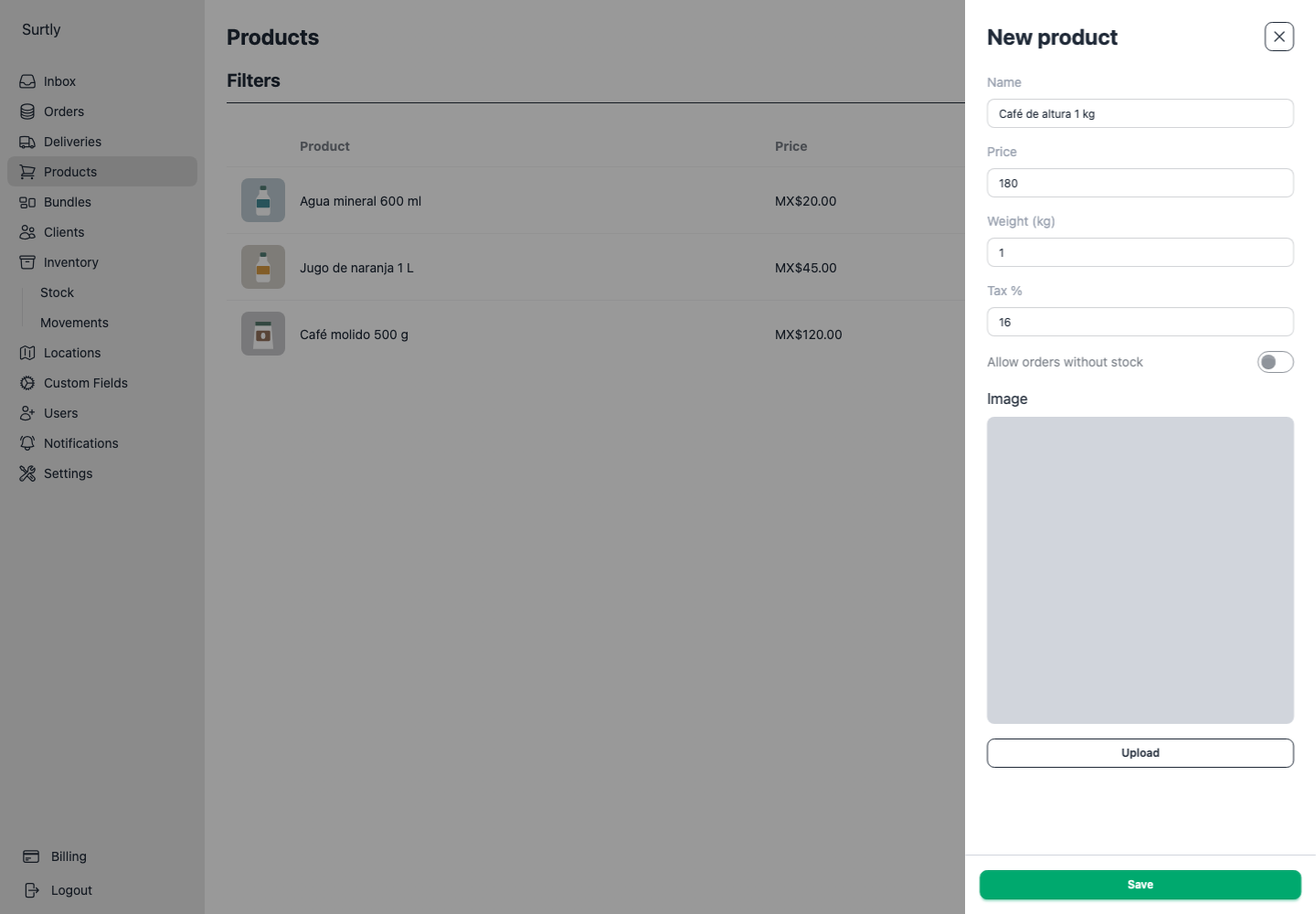
- Open Products → +.
- Enter a Name and Price. This is the product's base unit price in your business currency.
- Enter Weight (kg) when needed, especially for weight-based order limits.
- If taxes are enabled, enter Tax %, from 0 to 100.
- Optionally upload a product photo of up to 2 MB and fill in active custom fields.
- Select Save.
The new-product form currently rejects an entered base price of 0 with “A price is required for a product.” A zero-price product cannot be created through this form.
Maintain your catalog
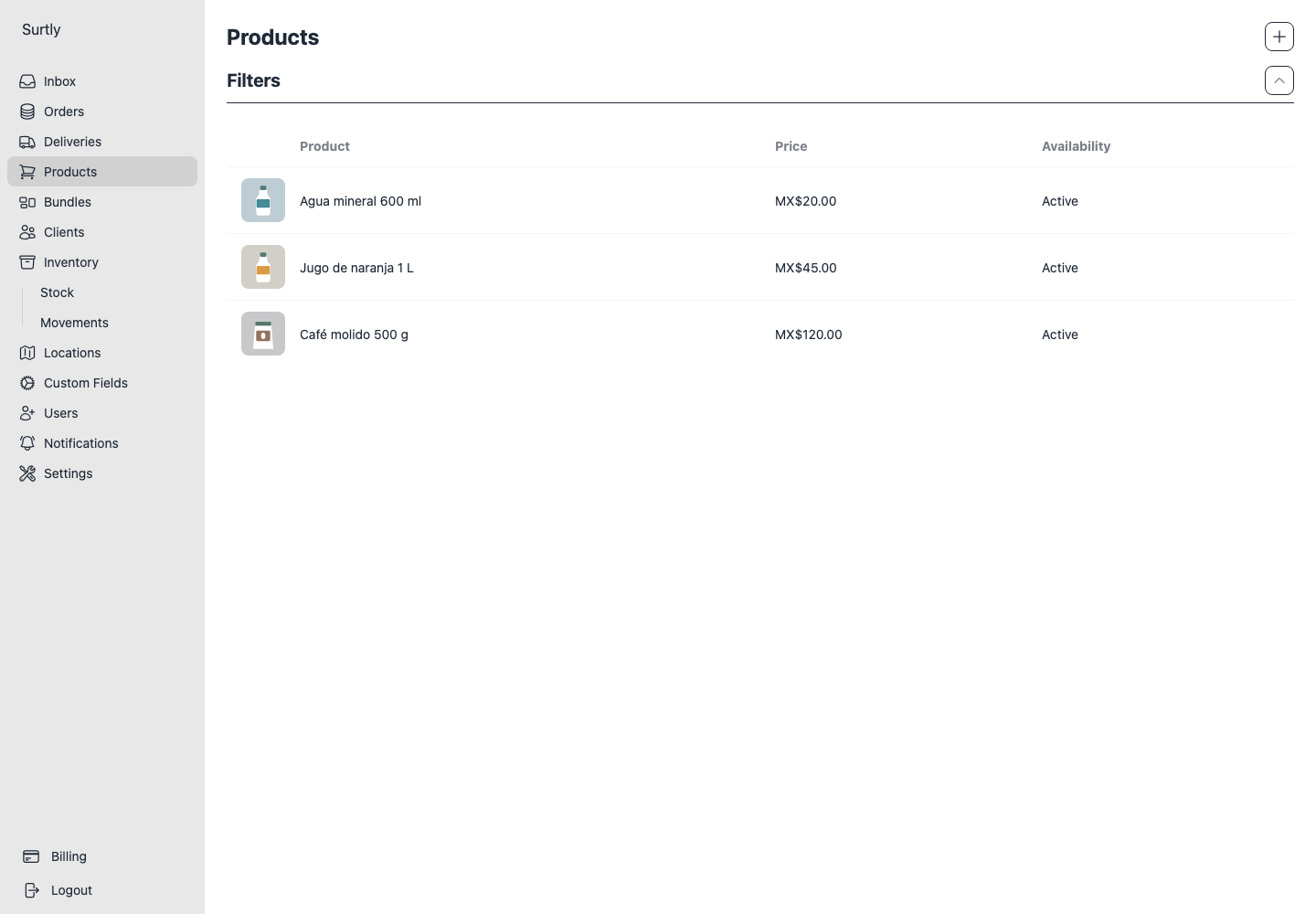
Filter by name, active status, or supported custom fields. Open a product to edit it, change its active state, replace or remove its photo, and inspect stock and recent movements.
Control availability
Allow orders without stock removes this product's order-stock cap. It does not bypass warehouse restrictions or allow inactive clients to order. Review this setting from the product detail after saving.
Active products belong to the normal client catalog. Client-specific availability may also expose inactive products. Bundle availability is separate: deactivating a component alone should not be used to withdraw an assigned bundle.
Use stocked locations to restrict eligible warehouses, custom prices for a negotiated client rate, or volume pricing for quantity tiers.
If expected records are missing, review and clear remembered list filters. A previous selection can still apply after returning to the page.