 surtly
Volume pricing
Create quantity tiers and assign them to clients.
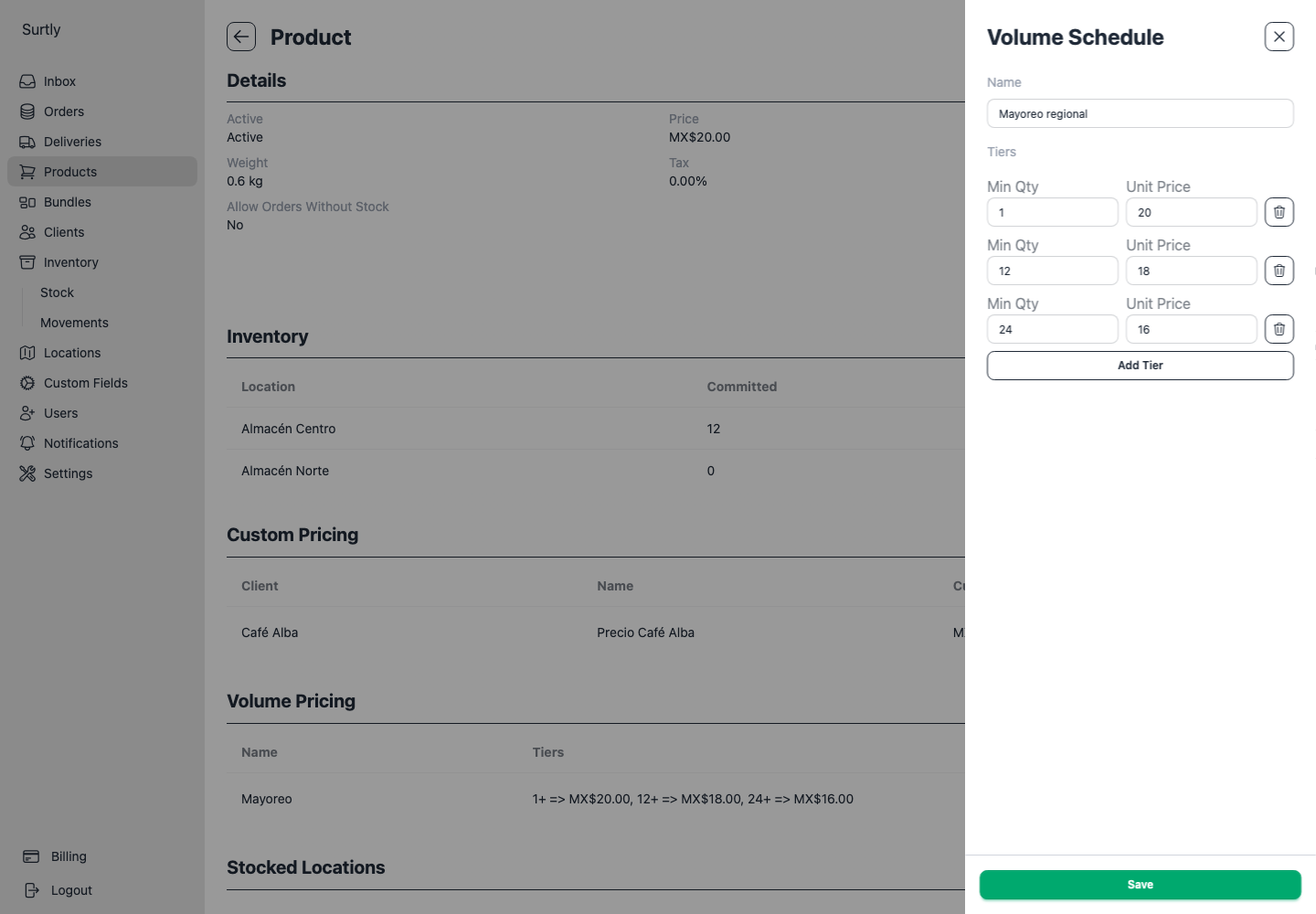
Create a schedule
Open the product and choose + → Volume Pricing. The drawer is titled Volume Schedule. Give the schedule a name and add tiers with increasing positive whole-number minimum quantities and unit prices. A tier price may be zero. Save the schedule.
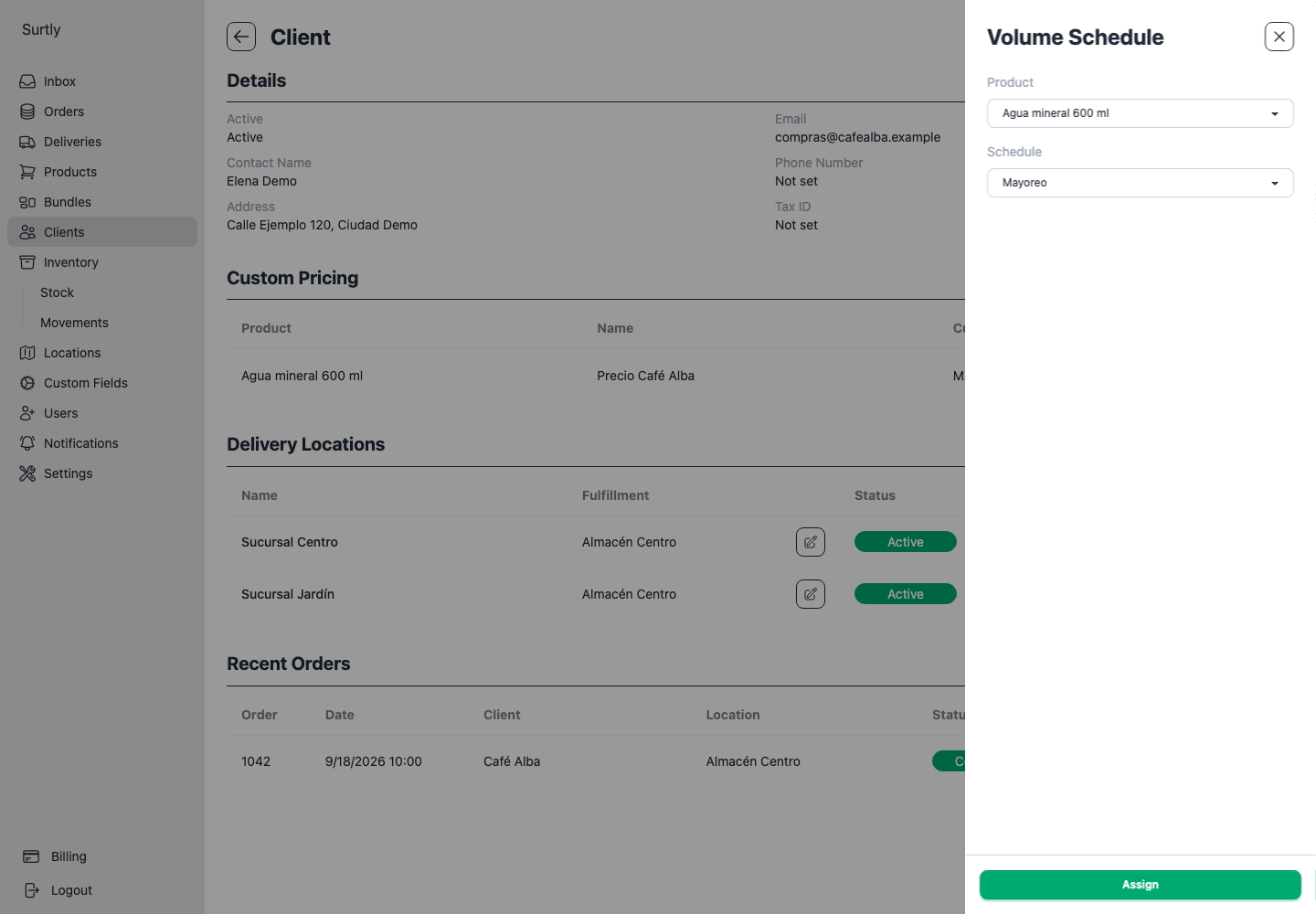
Assign it to a client
Open the client and choose + → Volume Schedule to assign a schedule for that product. Select an existing schedule or create one during assignment. Creating a schedule alone does not give every client its prices.
How a tier applies
The highest qualifying minimum sets the price of the entire direct product line, rather than pricing units in graduated bands.
| Schedule: 1+ at 10.00; 10+ at 8.00 | Subtotal before tax |
|---|---|
| 9 units | 9 × 10.00 = 90.00 |
| 10 units | 10 × 8.00 = 80.00 |
| 10 units, with custom price 9.00 | 10 × 9.00 = 90.00 |
If no tier qualifies, use the base price unless a custom price exists. Qualification uses that direct product line's quantity, not total order units or quantities inside bundles. Separate rows do not combine for tier selection.
Maintain shared schedules
In the product's Volume Pricing table, use the row's pencil to edit a schedule and choose Update. This changes future pricing for every client assigned to it. The row's trash button deletes the schedule and its assignments.
To stop using a schedule for just one client, use the trash button in that client's Volume Pricing table. Use + → Volume Schedule to assign a different schedule. Saved order amounts are unchanged by later tier edits.