 surtly
Build product bundles
Combine products, apply bundle discounts, and offer them to clients.
Create and offer a bundle
- Open Bundles → +. Enter the name, description, optional photo (up to 2 MB), and active state, then Save the bundle.
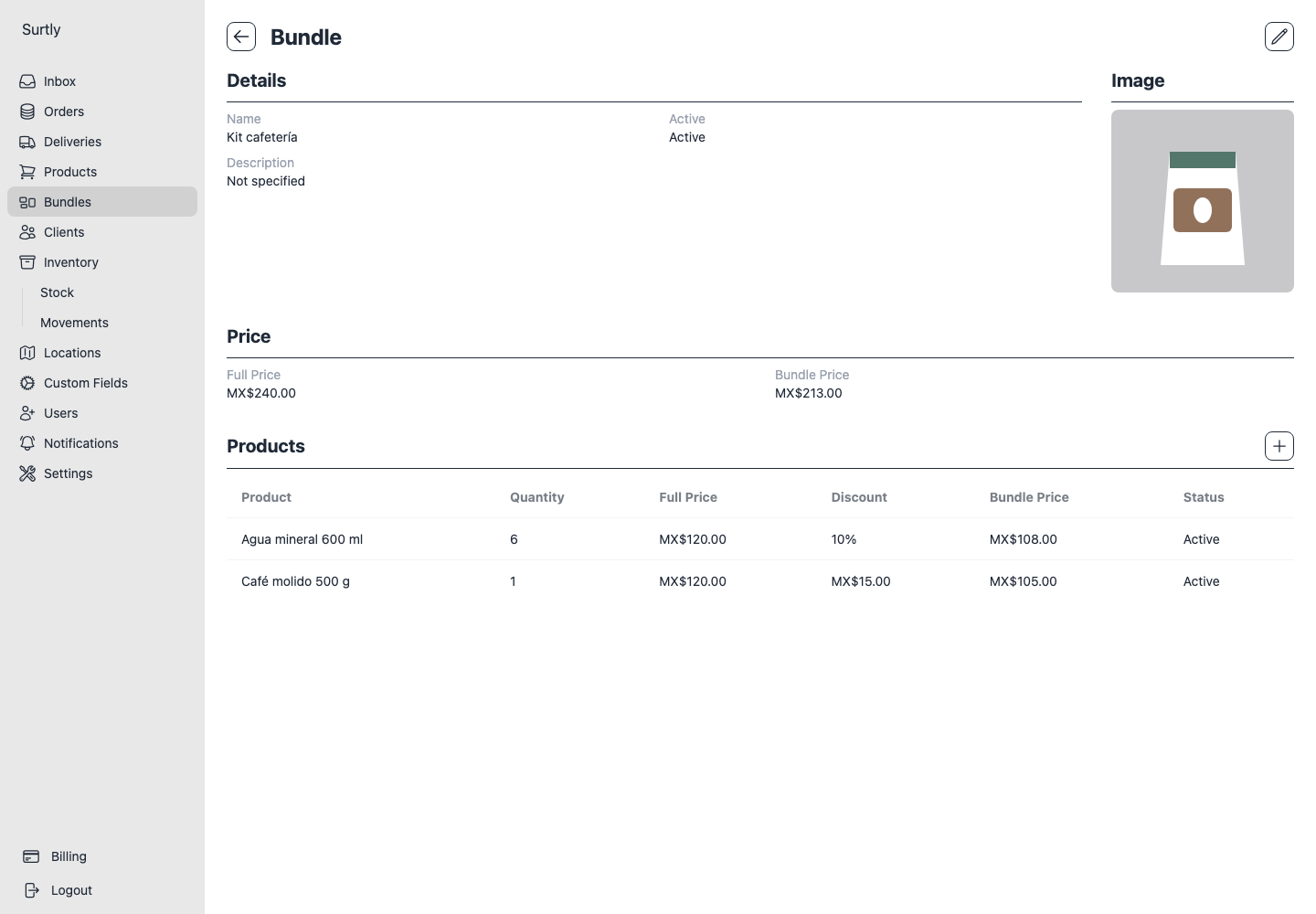
- Open the saved bundle. In Products, use + to add a component.
- Select the product, enter a whole-unit quantity, choose a percentage or fixed per-unit discount, and save the component. Repeat for each product.
- Review the component quantities and calculated price before offering it to clients.
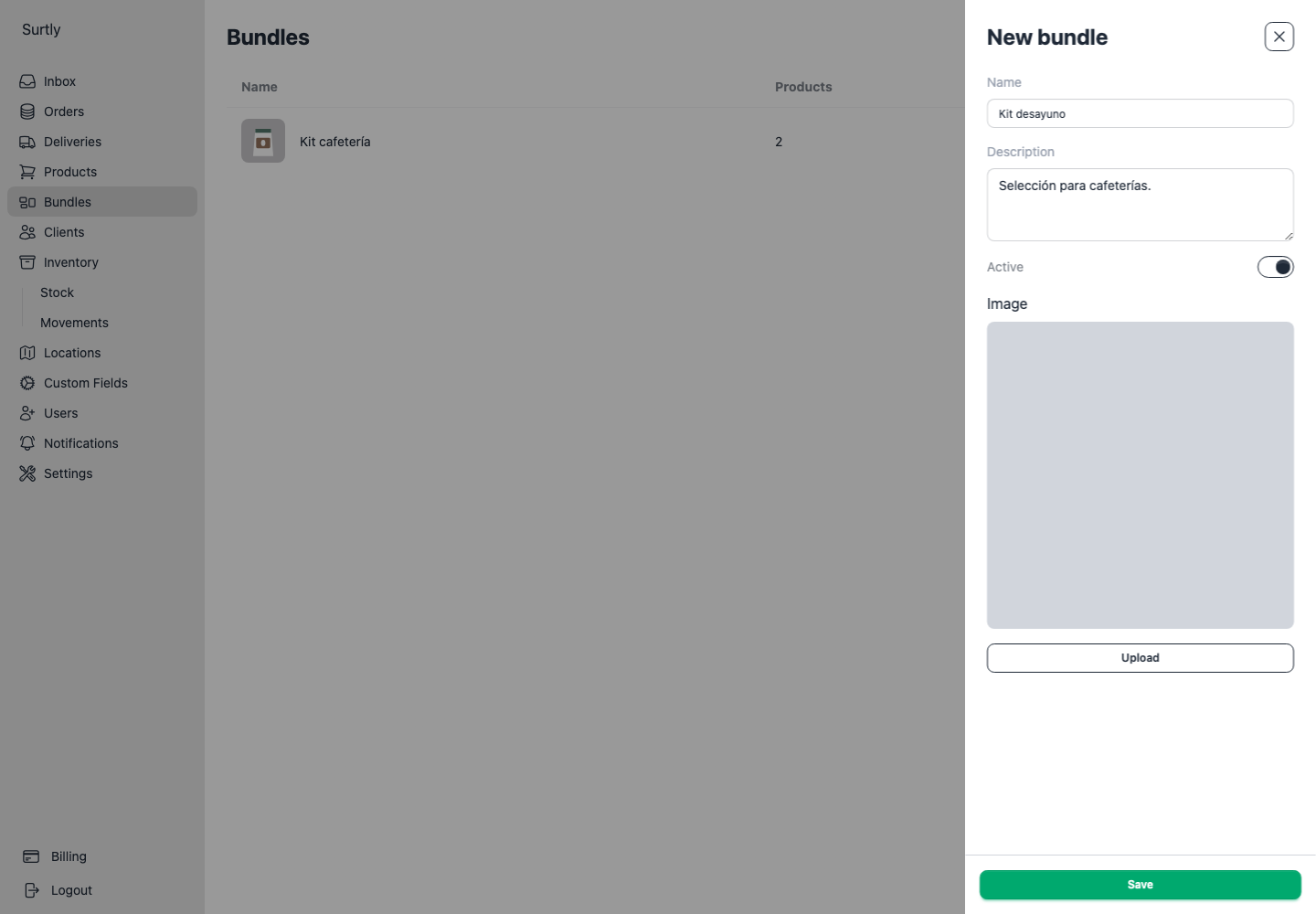
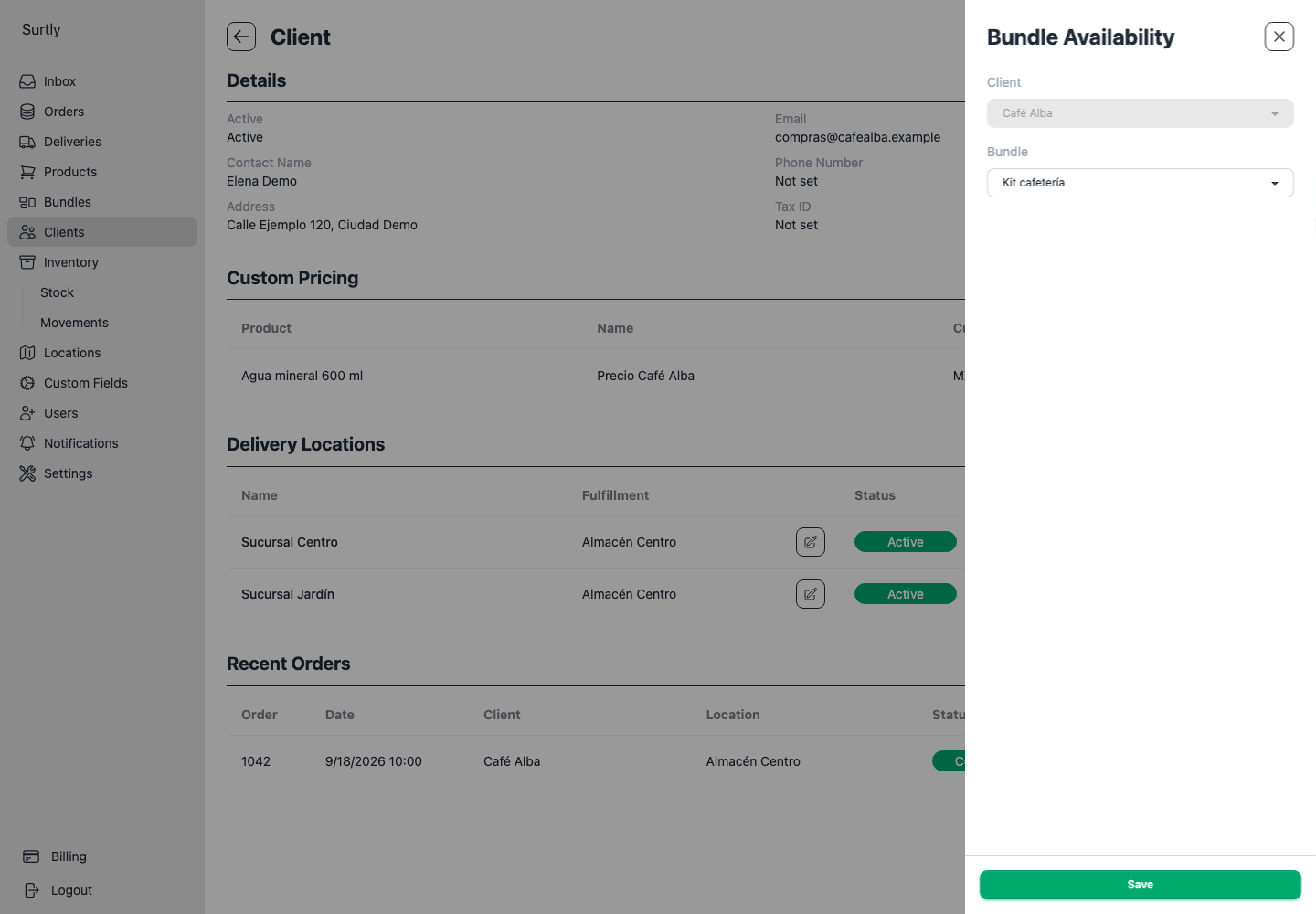
Offer it through the client's Bundle Availability section, using + for the first assignment. A bundle must be active, assigned to that client, and contain components. Remove the assignment to withdraw it for that client, or archive the bundle to make it inactive.
How discounts work
Bundle discounts use each component's base unit price. Client custom prices and volume schedules are ignored for bundle components.
A fixed discount is subtracted per component unit, not once from the bundle total. A percentage discount is rounded to cents per unit before multiplying by component quantity and ordered bundle count. Percentages can range from 0 to 100; a discount cannot produce a negative price.
For example, a component with a base price of 10.00, two units per bundle, and a 10% discount contributes 2 × 9.00 = 18.00 before tax. A client custom price of 7.00 does not change that calculation. Future bundle prices change when component base prices change.
Maintain a bundle
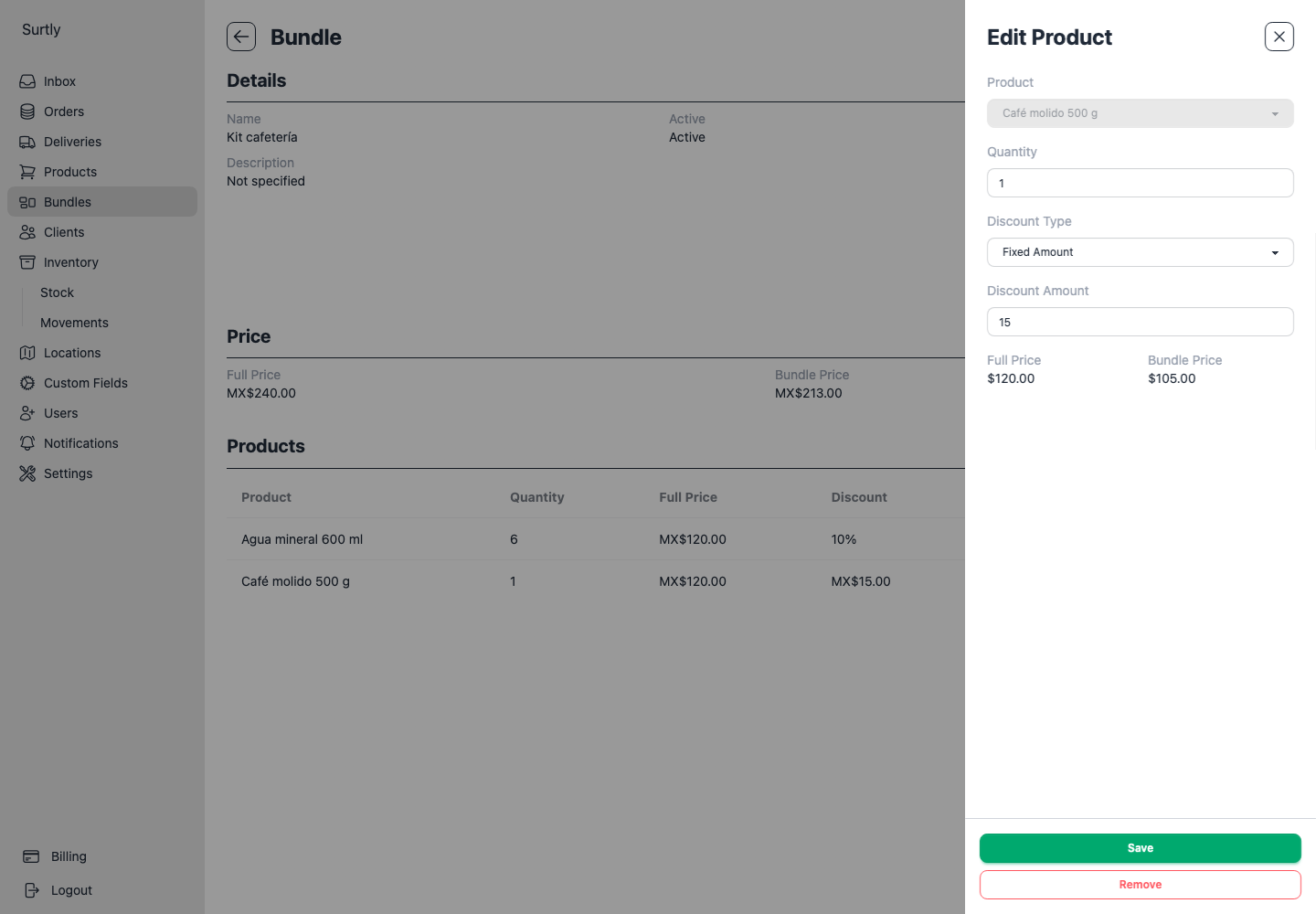
Open a component row to edit its quantity or discount and save. Use Remove to delete that component. Its product selection is locked while editing; remove it and add a new component to choose a different product.
Edit the bundle's own details to change its name or description, replace or remove its photo, or enable Active to reactivate an archived bundle. Replacement photos have the same 2 MB limit. Check components and client assignments again before making it available.
Check component stock
A bundle does not have separate stock. Its stock cap is the smallest whole number of bundles supported by any capped component. If it needs 2 coffees and 3 waters, with 5 coffees and 12 waters available, the cap is 2 bundles. Components allowing orders without stock do not impose a cap; warehouse restrictions still apply.
Expanded components count toward order quantities and weight. Saved orders contain product rows rather than guaranteed historical bundle grouping.
When a product appears directly and inside a bundle, or in several bundles, its quantities count together when you submit the order. If the combined quantity exceeds available stock at the selected warehouse, the order is rejected unless that product allows orders without stock.