 surtly
Client-specific prices
Set negotiated unit prices and understand which price wins.
Add or edit a custom price
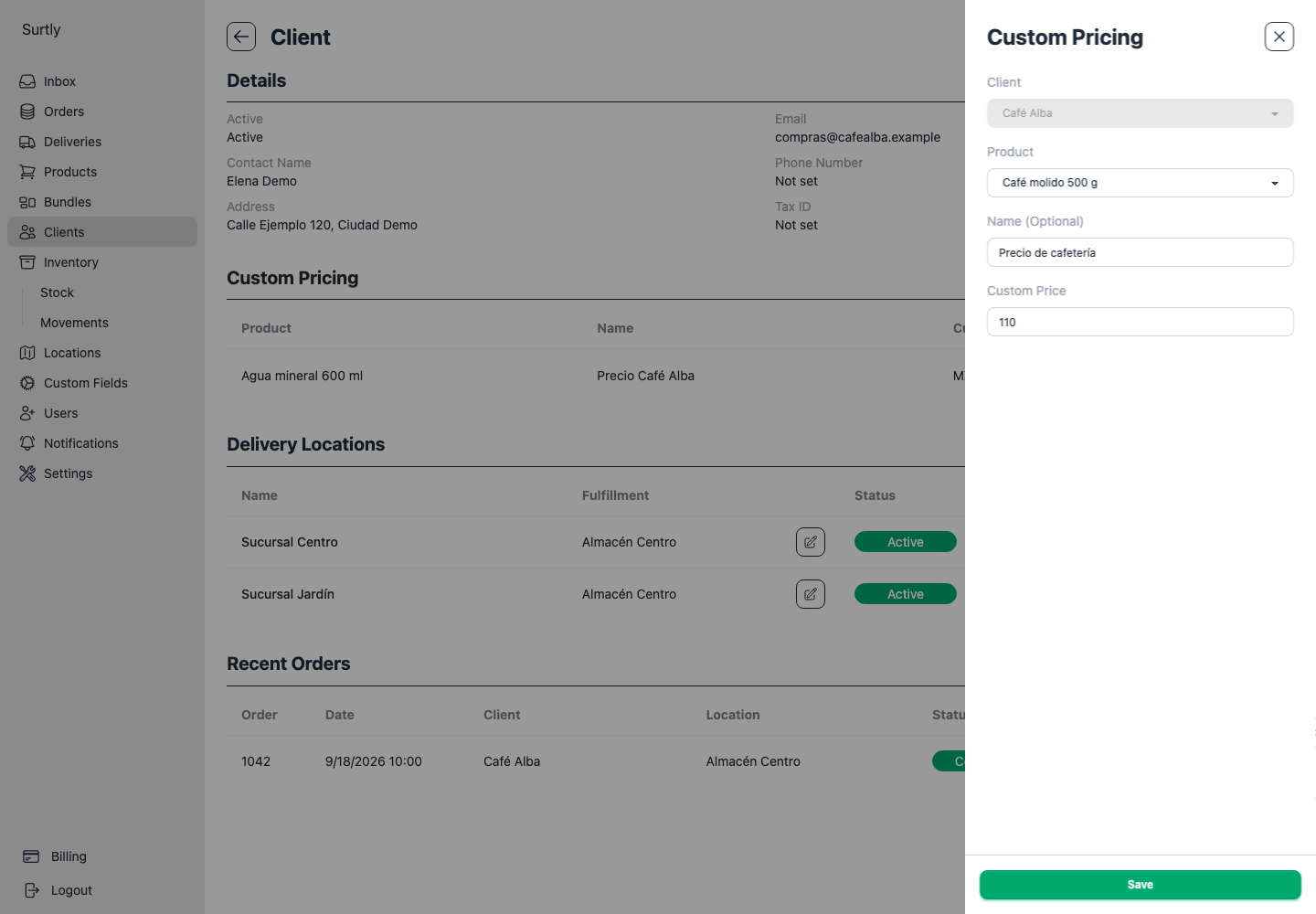
Open the client or product detail, then choose Custom Pricing from + if the section is not visible. Select the client/product pairing, enter the unit price, and save. Use an existing row's pencil to edit its price and choose Update. Use its trash button to delete the rule and restore normal price resolution.
Entering a zero price
The current custom-price forms reject an entered price of 0 with “All fields are required for custom pricing.” This is a form validation limitation. An existing saved custom price of zero still takes priority when calculating an order.
Price priority
For a product ordered directly, Surtly uses:
- The client's saved custom price, including a price of zero.
- Otherwise, the highest qualifying tier of the volume schedule assigned to that client and product.
- Otherwise, the product's base price.
A custom price always wins over a volume tier; it is not an extra discount applied to that tier. Prices do not vary by warehouse through this control.
Check the result
Start a new order for the client, enter a quantity, and inspect the unit price. Saving resolves the price again and stores the order amounts. Later price changes affect future orders, not saved monetary amounts. Currency labels follow the current business setting; see currency changes.
Custom prices do not apply to bundle components. Bundles use base prices and their own discounts.