 surtly
Configure your business
Manage business details, language, taxes, and currency.
Update your details
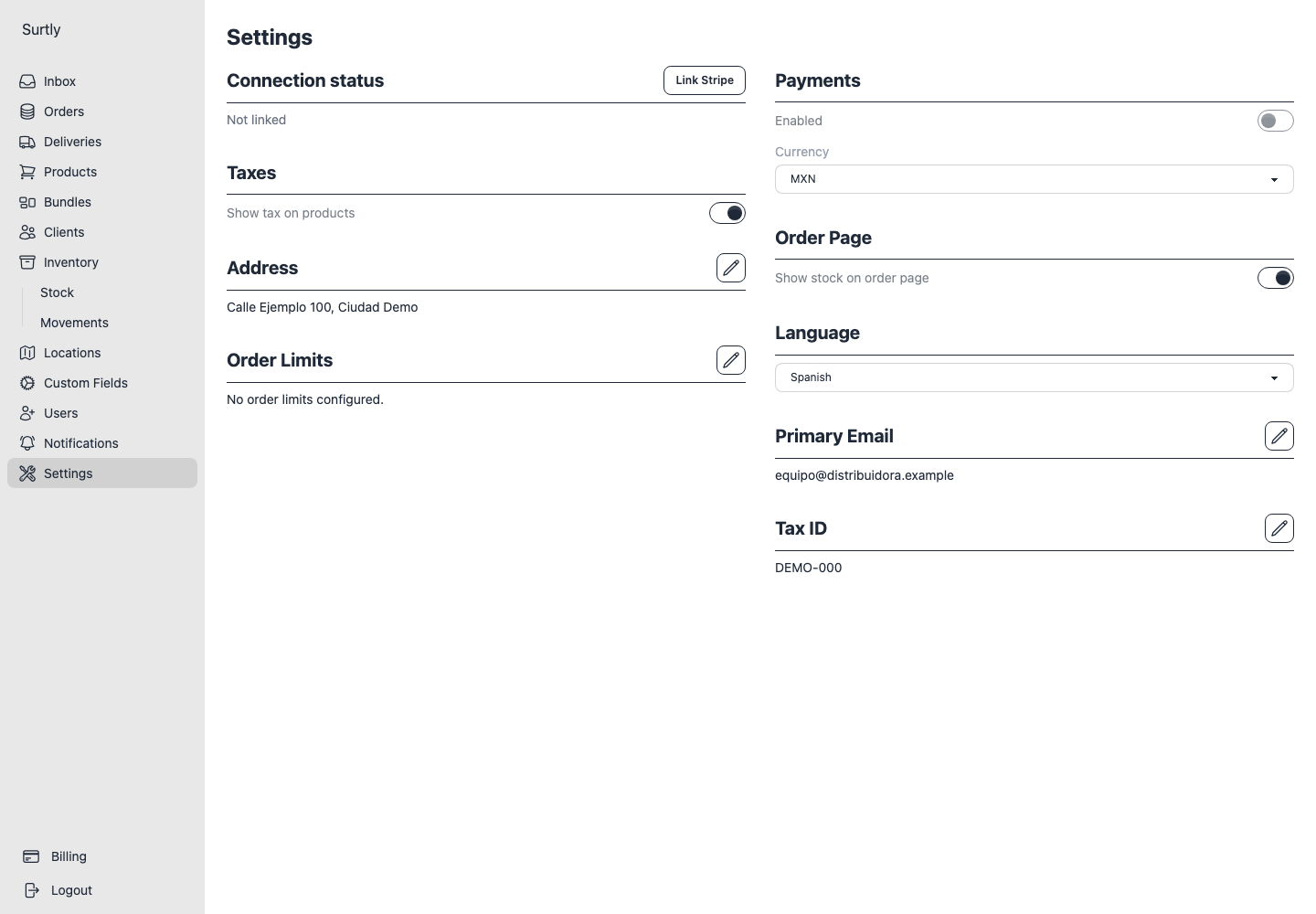
Open Settings with Admin access. Use the pencil beside the business address, tax ID, or primary email to edit that value, then save the drawer. The primary email is used for provider notifications; it is different from a delivery contact email.
Choose English or Spanish for notification templates. This setting does not translate every provider screen. The language selector in this documentation changes the guides only. Language, currency, and the tax, payment, and stock-visibility switches save as soon as you change them; there is no separate page-wide Save button.
Set taxes and currency
Enable Show tax on products if you need product tax rates. Enter each rate in the product editor. Rates apply to product lines, including bundle components. Compare the saved order total with the draft: cent rounding can produce a small difference.
Choose the payment currency before creating your catalog and orders. The supported choices are USD, EUR, GBP, CAD, and MXN.
Changing currency on an existing business
Changing the setting does not convert prices or saved order amounts. Historical amounts display with the current currency, and a new checkout for an existing order uses that currency. Review existing orders and payment arrangements before changing it.
Configure ordering
Set the minimum or maximum order quantity or weight and choose whether clients can see stock quantities. These are independent settings. See order settings.
For Stripe connection and payment controls, follow payments.