 surtly
Access your account
Sign in, join a business, and recover access.
Sign in or create a business
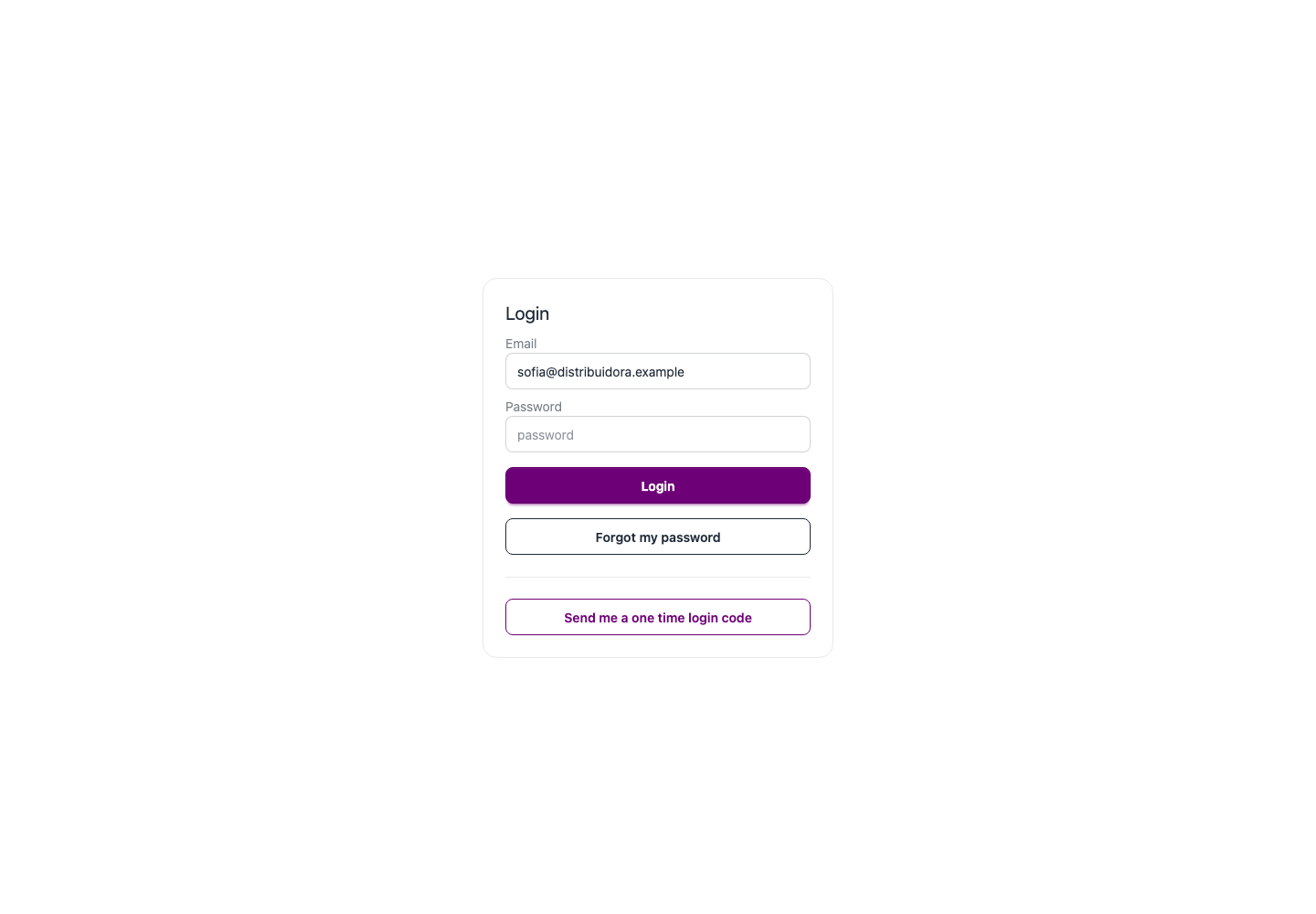
Open the Surtly sign-in page, enter your email and password, and choose Login.
To use an email code instead, enter your email and choose Send me a one time login code. On the next screen, check your email address and choose Send code; opening this screen does not send the email. Enter the code you receive and choose Verify code.
To create a new provider account, open the signup page, enter your email, business name, and password, and choose Signup.
To join an existing business, use the invitation sent by its administrator instead of creating another provider. Open the invitation link, set your password, and complete the invitation flow.
Reset your password
Enter your account email on the sign-in page first, then choose Forgot my password to send the recovery email. Follow the link you receive and set a new password on the recovery screen. If a link has expired or is invalid, request a fresh email rather than reusing the same link.
Check your access
Your administrator controls which provider areas you can open. If a menu is missing or access has been revoked, ask them to review your membership in Users. See team access.
Use Logout in the account navigation to end the session. If the session expires, sign in again before retrying an action; check whether the earlier action succeeded before submitting twice.