 surtly
Set ordering rules
Choose order-size limits and whether clients see stock.
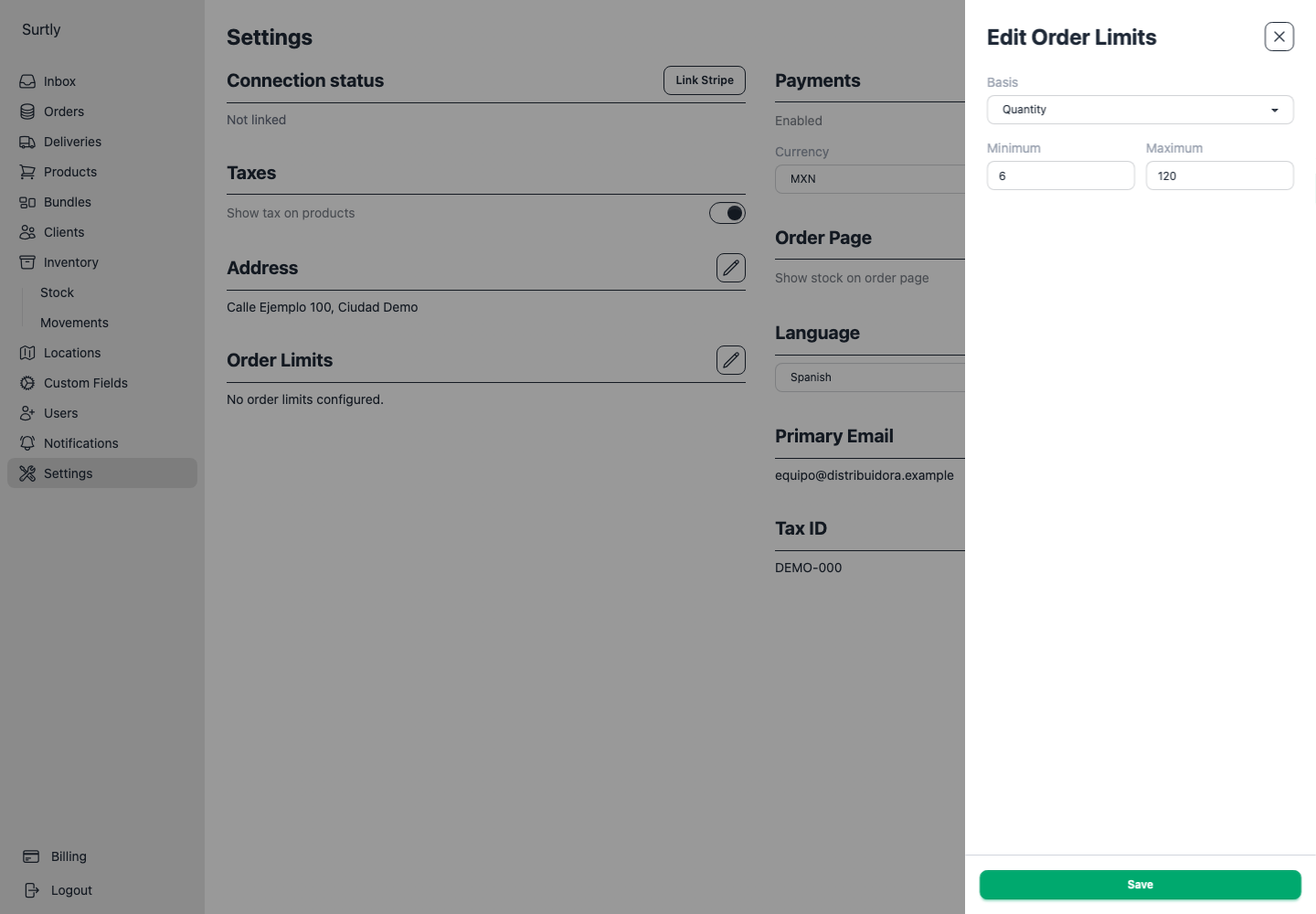
Set a size limit
Open Settings and use the pencil beside Order Limits. In Basis, select No policy, Quantity, or Weight (kg). For quantity or weight, set an optional minimum, maximum, or both, then save the drawer. Changing the basis clears the draft minimum and maximum, so re-enter them before saving. Quantity means whole product units across the order, including expanded bundle components.
For weight limits, enter product weights in kilograms in Products. Bundle weight is calculated from its component products. Missing weights prevent client ordering when a weight policy applies.
Provider-entered orders
Authenticated provider teammates bypass these client size limits, including the missing-weight requirement under a weight policy. They still need an active client and must meet product warehouse-scope and applicable stock requirements.
Show or hide stock
Use Show stock on order page in Settings to control whether the client sees stock quantities. This switch saves immediately. Hiding them does not disable stock checks.
The product option Allow orders without stock is separate: it skips that product's stock cap for orders. It does not grant warehouse access, remove stocked-location restrictions, or reactivate a client.
Before changing these settings, review one representative direct-product order and one bundle order so the thresholds reflect the quantities or weight you intend.