 surtly
Process and find orders
Work through the inbox, fulfill orders, and maintain records.
Find the order
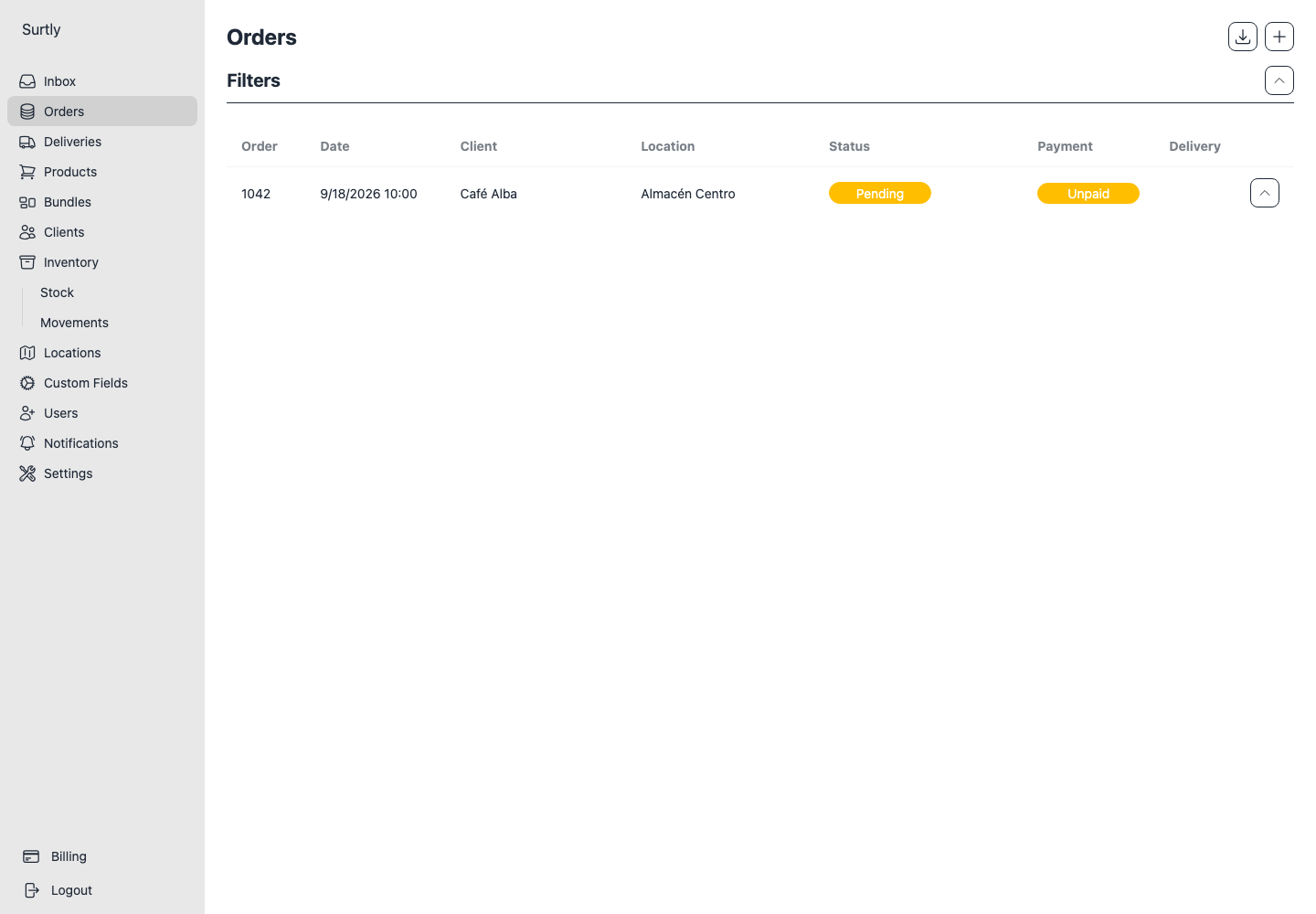
Inbox contains unfulfilled, uncancelled orders. Use Orders for broader history and filter by client, warehouse, status, or payment state where offered. Expand a row to inspect its products or open the order detail. A client's detail page also links to their order history.
Clear remembered filters
List filters are saved in this browser for each provider and page. Returning to a page or refreshing it can restore earlier selections. If records seem to be missing:
- Expand Filters and review all selected values.
- Choose Clear to reset the filters. A date field also has its own × control.
- Check the list again, then apply only the filters you need.
Review list filters before exporting: matching records can be excluded by an old selection.
Keep Inbox open
Inbox updates automatically while open. If the live connection reports an error, the app falls back to checking about every 30 seconds. Filters still apply, so a new order may be hidden by a retained selection. If an expected order does not appear, clear filters, check your connection, and refresh the page.
Review and fulfill
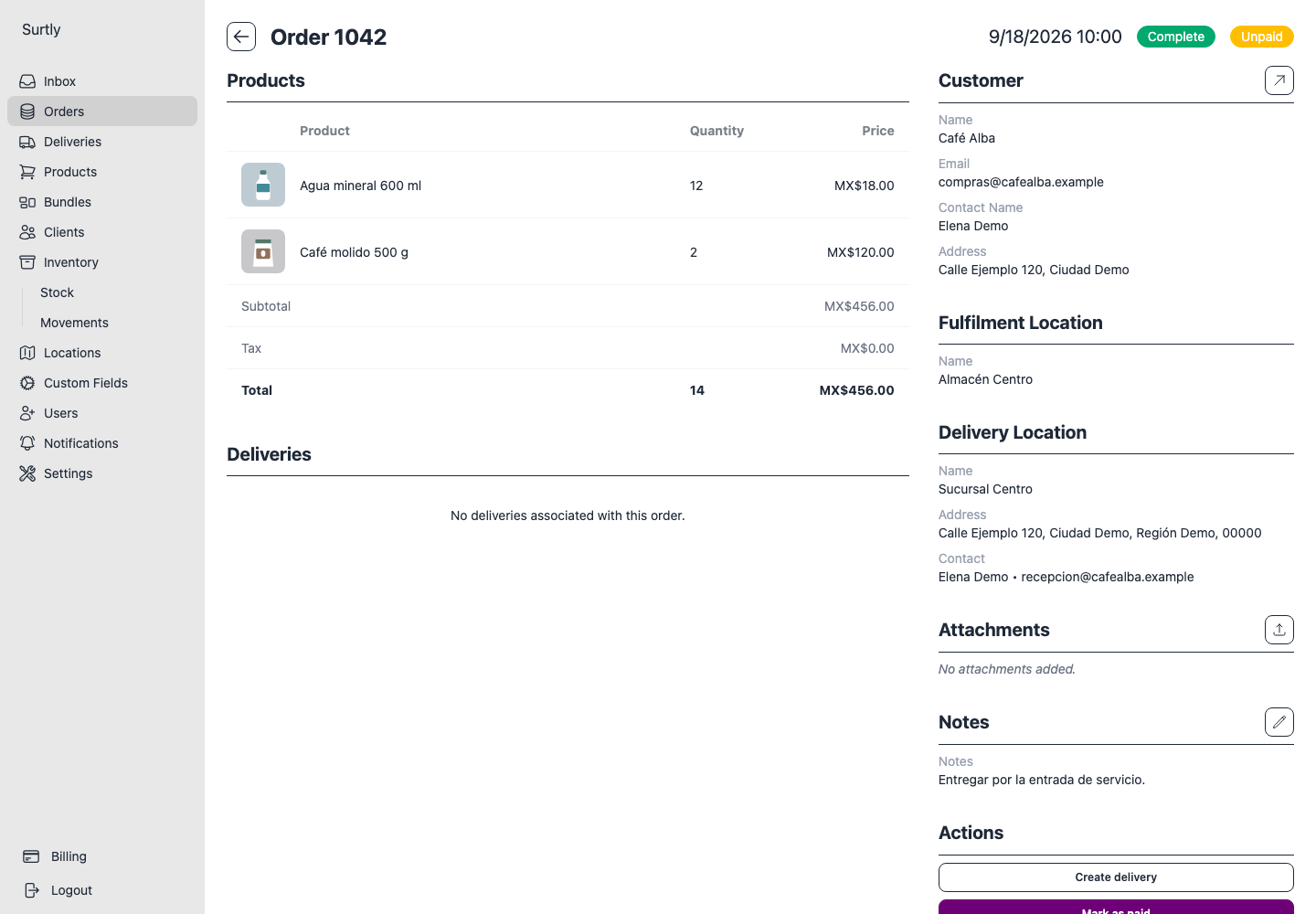
Check the client, warehouse, delivery snapshot, quantities, and saved total. Use Fullfill when the order is ready (the button uses this spelling). This action is available while the order is neither fulfilled nor cancelled.
Fulfillment does not mean the payment has been collected or the delivery has succeeded. Continue with delivery tracking and payment reconciliation separately.
Cancel an order
Use Cancel before fulfillment or cancellation, while the action is offered. There is no reopening or partial-fulfillment control in this workflow. Cancelling an order does not itself issue a Stripe refund.
Notes, links, and attachments
Clients can read the order's notes and download its attachments from their order page. Providers edit notes and add or remove files. There is no internal-only visibility setting for these order fields.
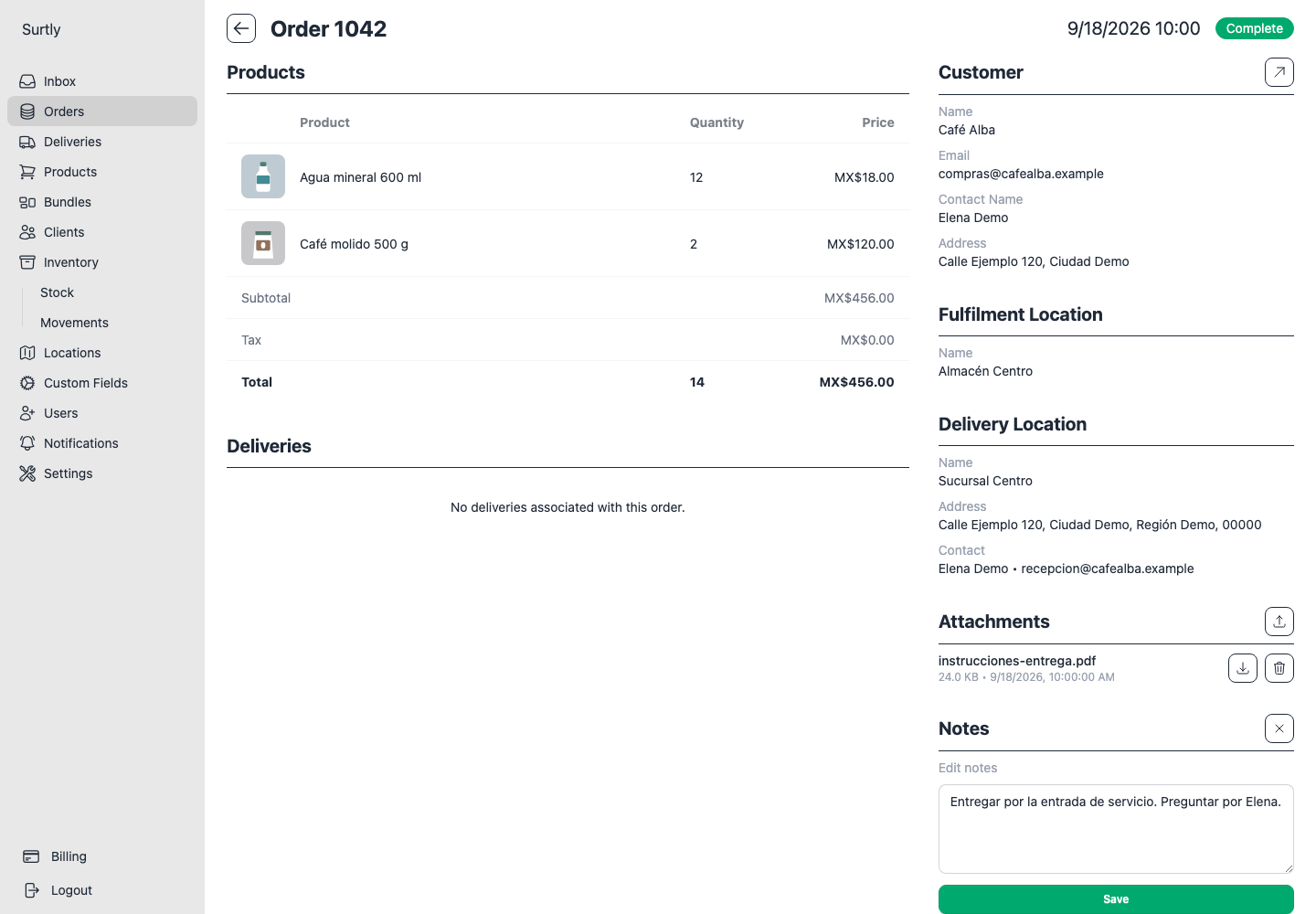
- In Notes, select the pencil, edit the text, and choose Save. The × button discards the unsaved edit.
- In Attachments, use the upload arrow and choose a PNG, JPEG, WebP, GIF, or PDF, up to 10 MB per file.
- Check that the filename appears. Use its download arrow to retrieve it or its trash icon to remove it.
Order files and delivery files belong to separate records; they are not automatically copied between them. Copy the client order link to share the order. On uncancelled orders, Invoice and Packing open the print documents.
The saved order does not offer line-item, unit-price, warehouse, or delivery-address reassignment. Changes to a client's saved address do not change the order's delivery snapshot.