 surtly
Manage your clients
Create a client, share their ordering link, and manage their status.
Create a client
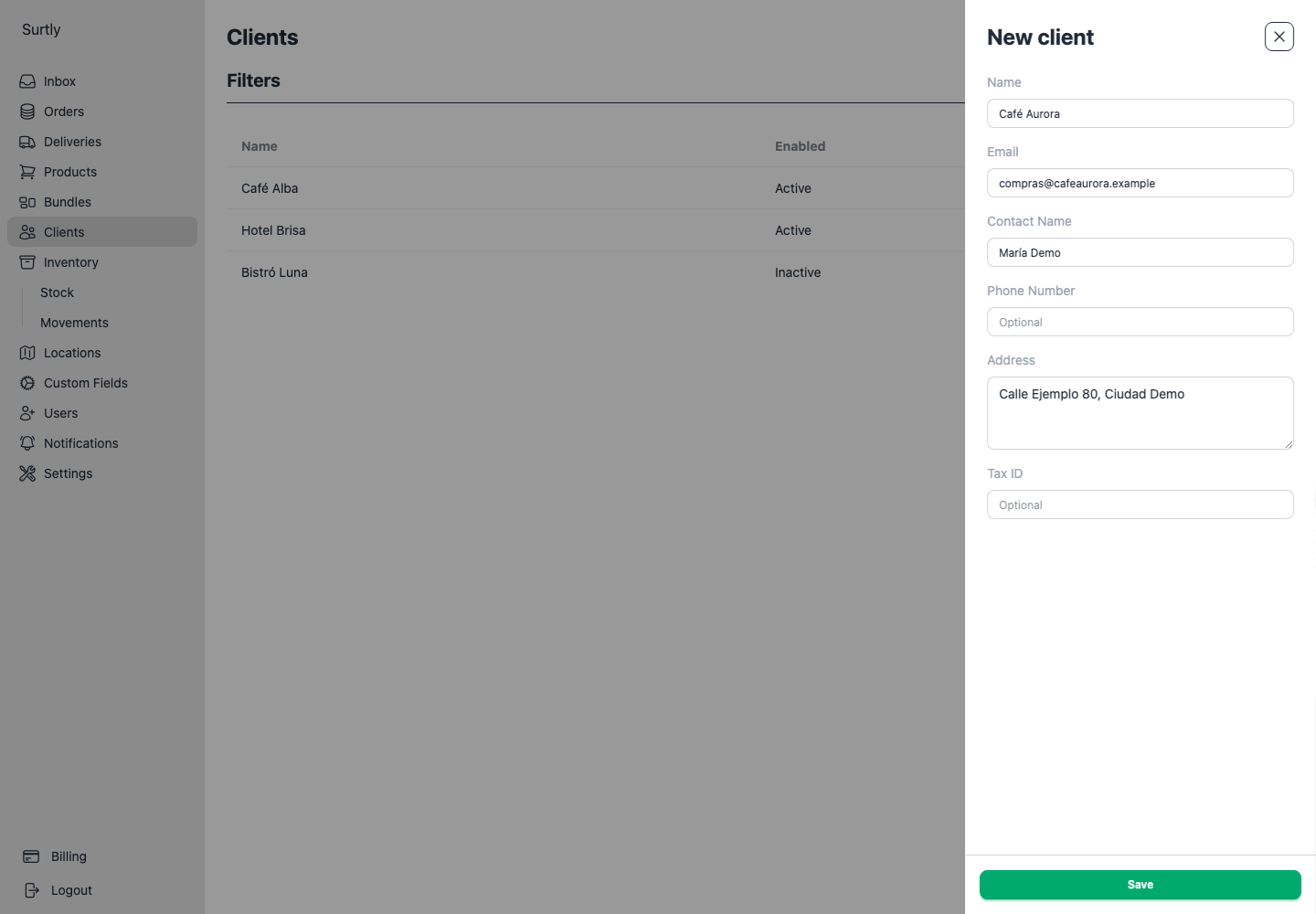
- Open Clients and select + in the upper-right corner.
- Enter the client's Name and Email. Both are required.
- Add an optional contact name, phone, address, tax ID, and any custom fields. A phone number must contain 7–15 digits and may begin with +.
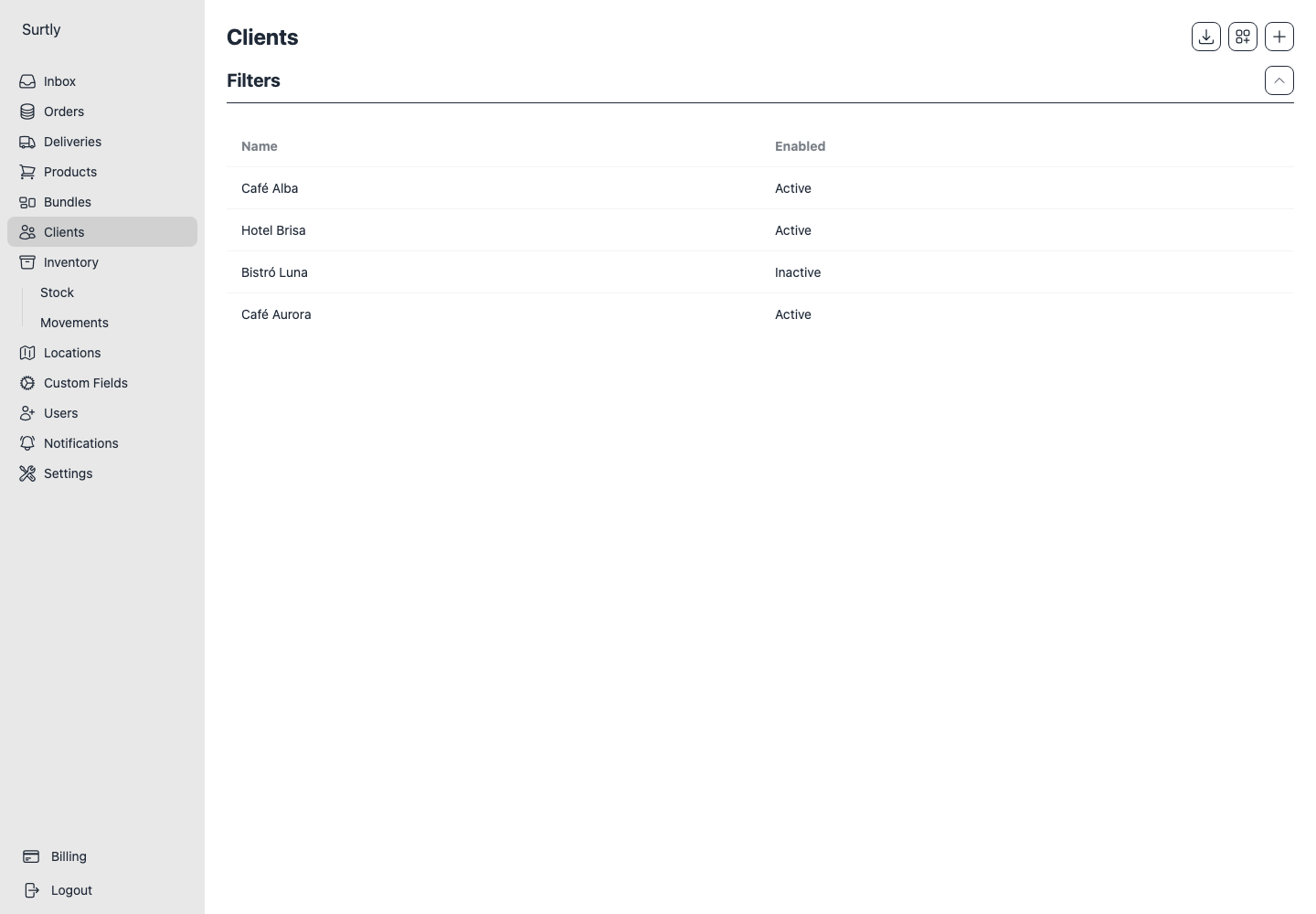
- Select Save. The new client appears in the list.
Find and update a client
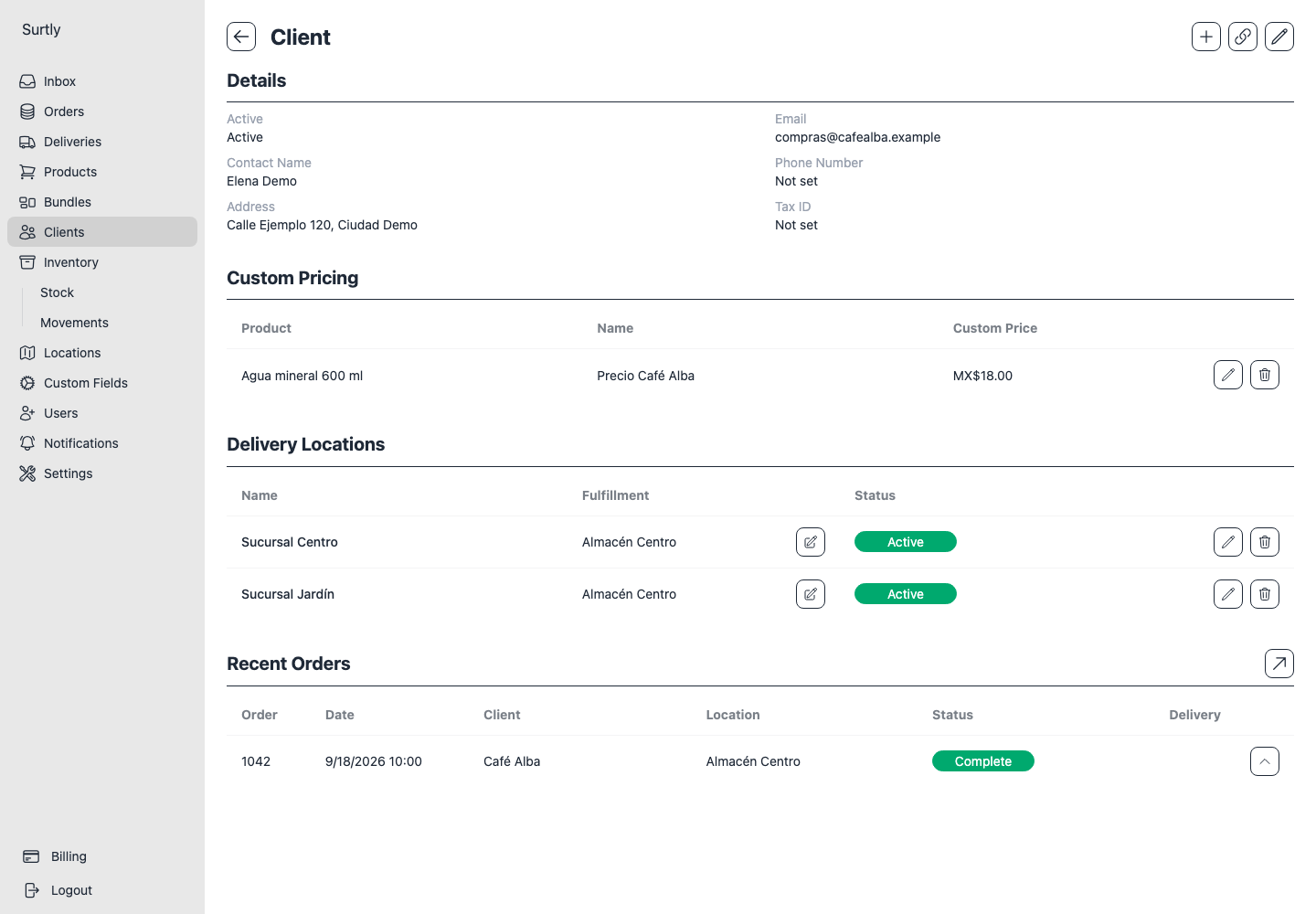
Filter the list by name, active status, or supported custom fields. Open a client to edit their details and inspect recent orders. Use the order-history link for their complete history.
Share the ordering link
On the client detail page, use the link control to copy the client's ordering URL. Send the copied link through your usual communication channel. Copying does not send a message from Surtly.
Deactivate or reactivate
Edit the client's Active setting. An inactive client cannot create a new order, and your team cannot create one on their behalf. Existing order history remains available. Reactivate the client to resume ordering; custom prices or availability grants do not override this status.
Next, configure delivery addresses and warehouse access if needed.
If expected records are missing, review and clear remembered list filters. A previous selection can still apply after returning to the page.
When sharing an order link, remember that the client can read its notes and download its order attachments. See notes and file visibility.