 surtly
Selected products and negotiated prices
Offer a seasonal product only to selected clients, at a price agreed with each client.
The business situation
Your regular products are available to everyone, but Café de temporada 500 g is reserved for selected customers. Café Alba should be able to order it at MXN 110 instead of the MXN 120 base price. Hotel Brisa should continue to see only the regular catalog.
Both clients are active and use the same public warehouse, Almacén Centro. This example restricts a product within that warehouse. For separate inventories, see coffee and franchise supplies.
| Product | Café Alba | Hotel Brisa |
|---|---|---|
| Regular active products | Available at normal resolved prices | Available at normal resolved prices |
| Café de temporada 500 g | Custom availability and MXN 110 unit price | Not offered |
Prepare the reserved product
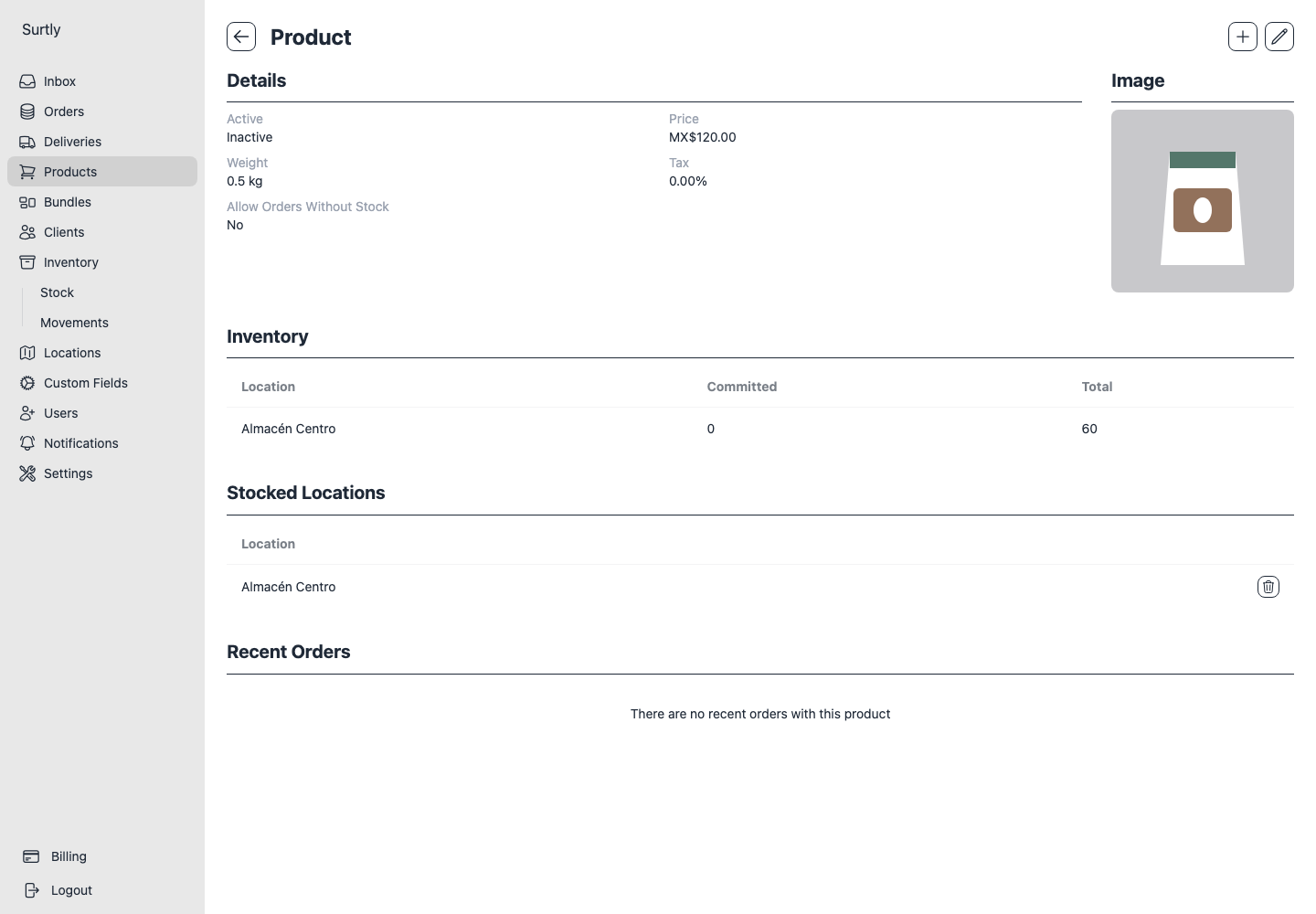
Create the seasonal coffee with a base price of 120, assign Almacén Centro in Stocked Locations, and record stock there. Then edit the product and turn Active off before sharing its ordering link. Leave Allow orders without stock off for this example.
Inactive products can be made available through individual client grants. An active product belongs to the normal catalog: removing a client's custom grant does not hide a globally active product.
Grant availability to the selected client
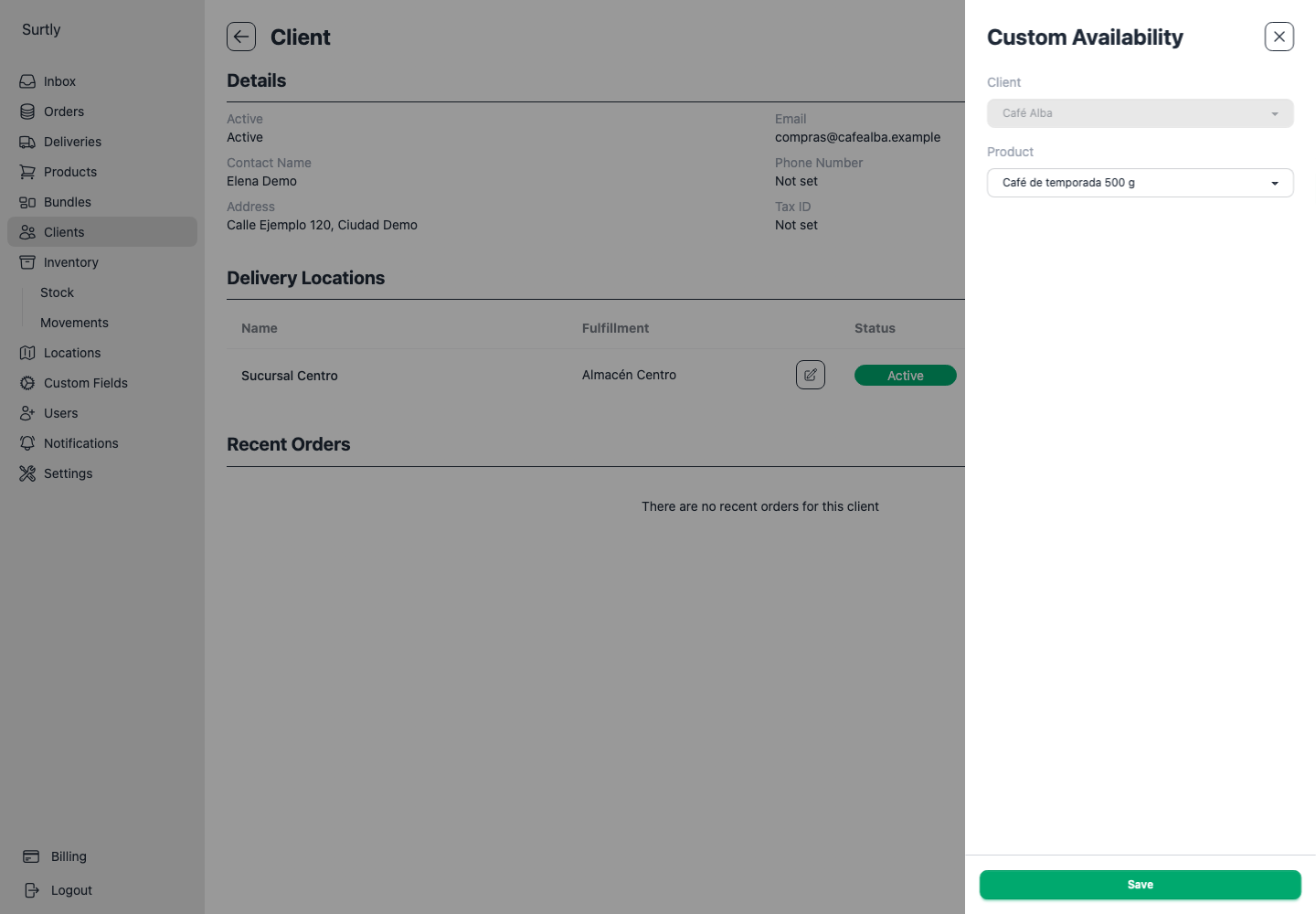
Open Clients → Café Alba → + → Custom Availability, select Café de temporada 500 g, and save. Do not add the pairing for Hotel Brisa.
For a larger group, create a supported Yes/No or Dropdown client field, set its values, then use Batch custom availability. Select the intended filter and review the client names before Apply. No filters means all clients, including inactive clients. A metadata label alone does not create grants, and changing that label later does not remove previously applied grants.
Set the agreed price
On Café Alba, open + → Custom Pricing. Select the seasonal coffee, give the rule a recognizable name, enter 110, and save.
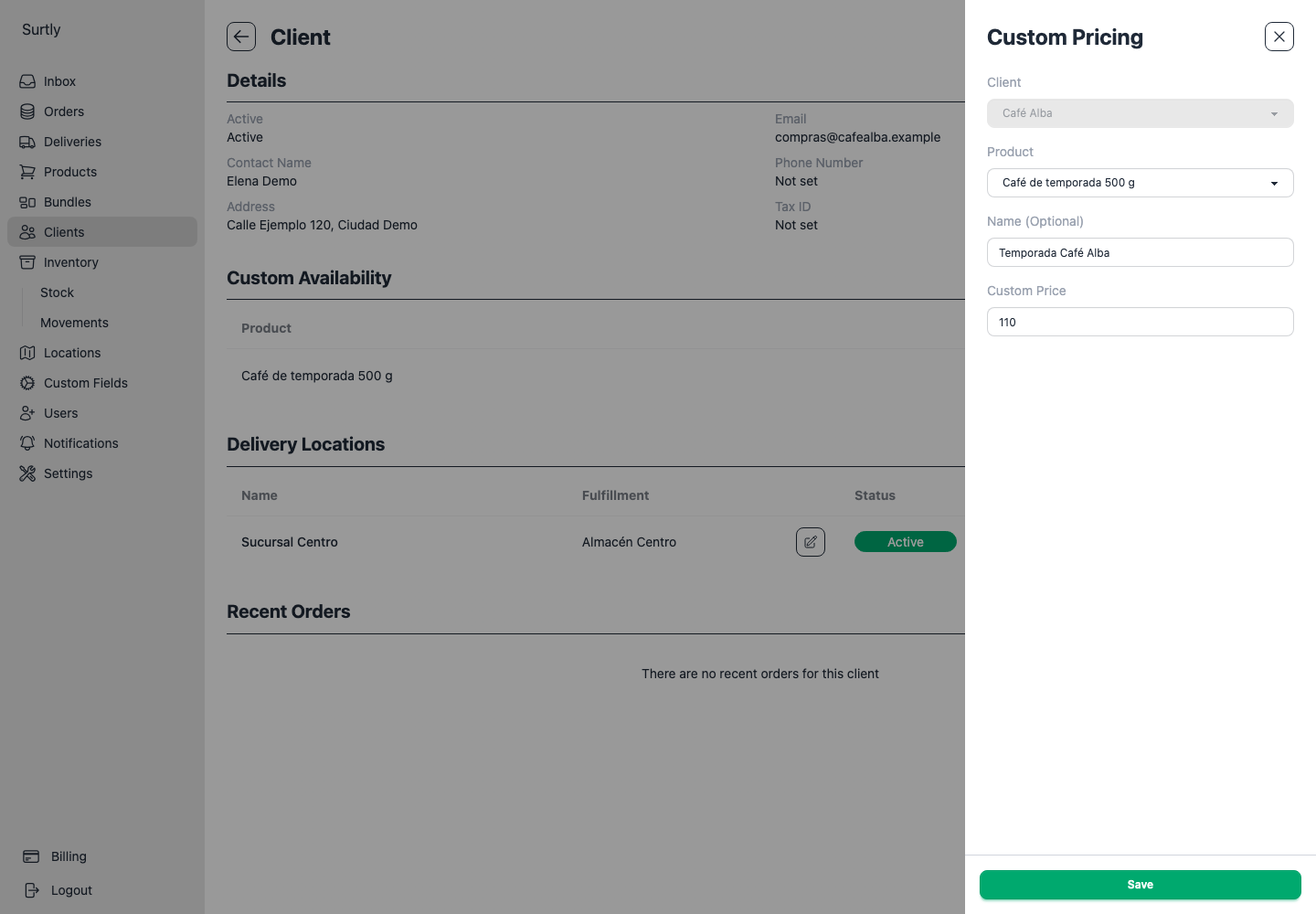
For a directly ordered product, a saved custom price wins over an assigned volume schedule; otherwise the qualifying volume tier wins over the base price. If you want volume tiers to apply instead, remove the custom price and assign a schedule. Warehouse choice does not select a different price list.
Verify availability and price
Use each client's ordering link and start a draft with positive available stock at Centro:
- For Café Alba, find the seasonal coffee, enter quantity 2, and confirm unit price MXN 110 and subtotal MXN 220 before tax. The screenshot uses a 0% product tax rate.
- For Hotel Brisa, confirm that regular products remain available and the seasonal coffee is absent.
- If staff enter the order for Café Alba, change Status → All Products or Inactive to find the granted inactive product; the staff form starts with Active products.
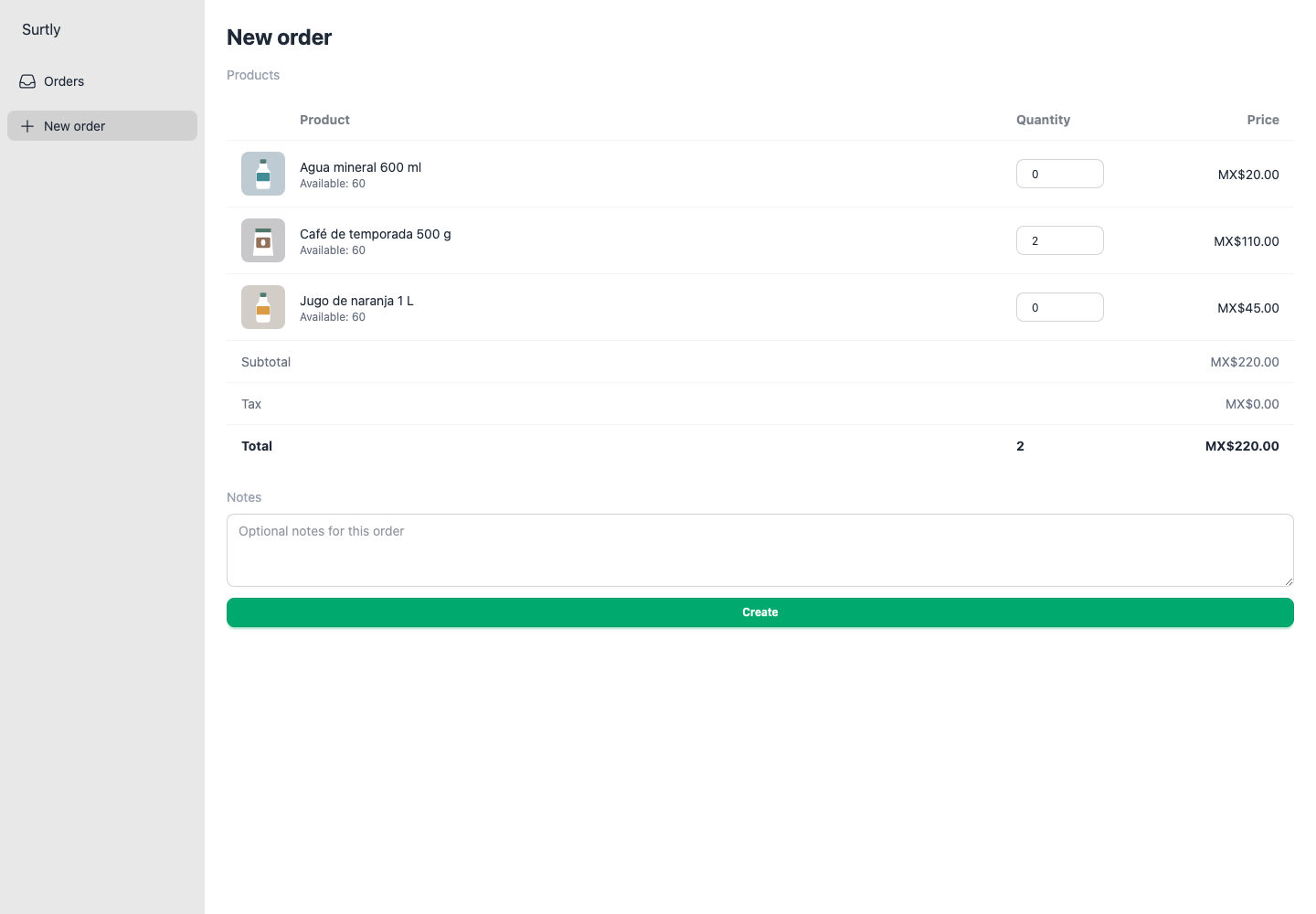
There is no need to submit the draft just to check the setup. Stock, product location scope, client active state, and client order limits still apply. The grant does not bypass them.
End the offer
Remove Café Alba's Custom Availability pairing when the seasonal offer ends. Leave the product inactive if it must stay out of the general catalog. Remove the Custom Pricing rule separately if the agreed price should not remain for a future offer.
Review any bundle assignments too: bundles have separate availability, and deactivating a component or removing its direct product grant does not withdraw an assigned bundle. Custom prices and volume schedules do not apply to bundle components; bundles use base prices and their own discounts.
Price changes apply to future orders, not the monetary amounts saved on existing orders. See custom prices for editing and removal details.