 surtly
Manage warehouses
Create locations, choose a default, and maintain availability.
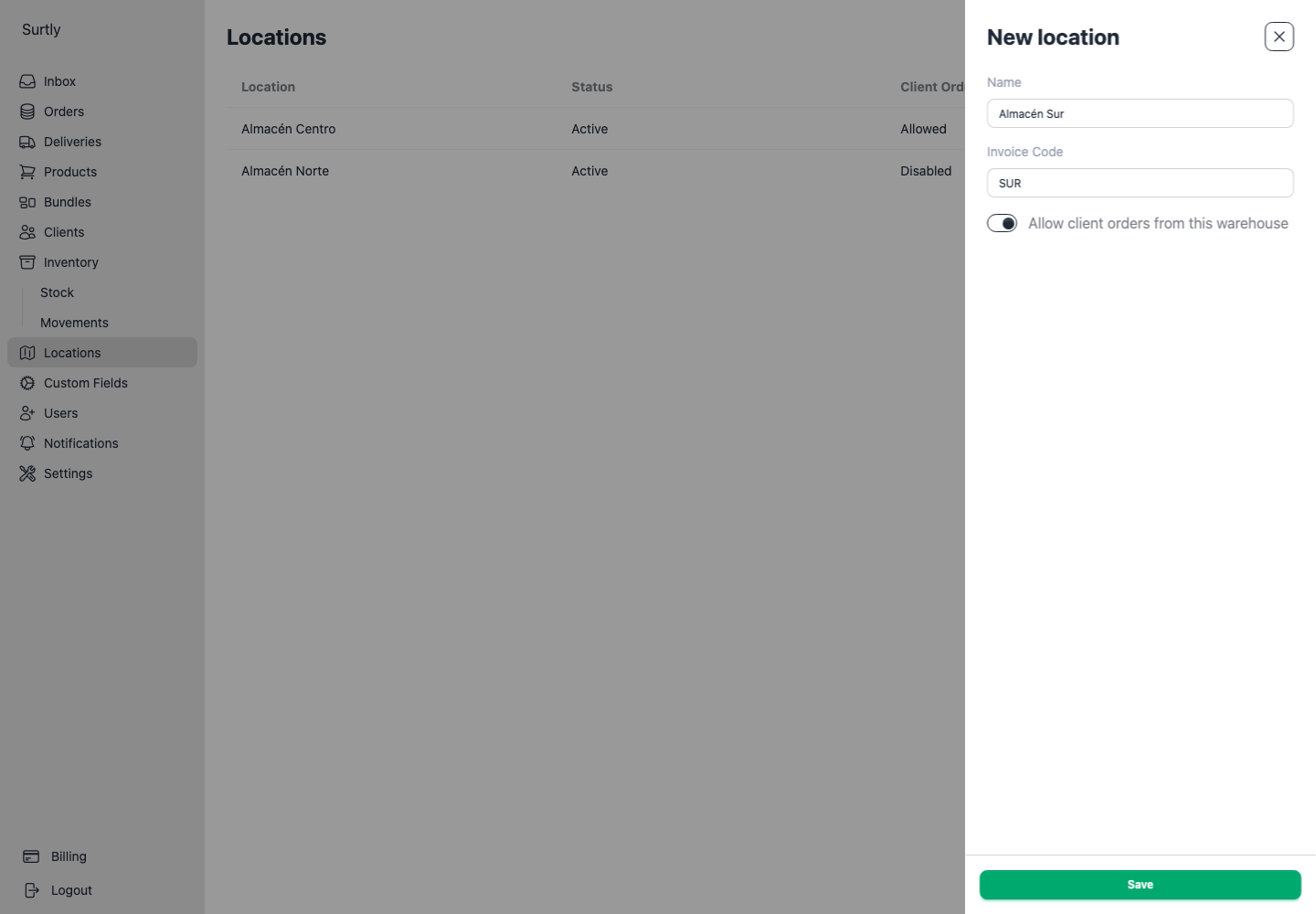
Create a warehouse
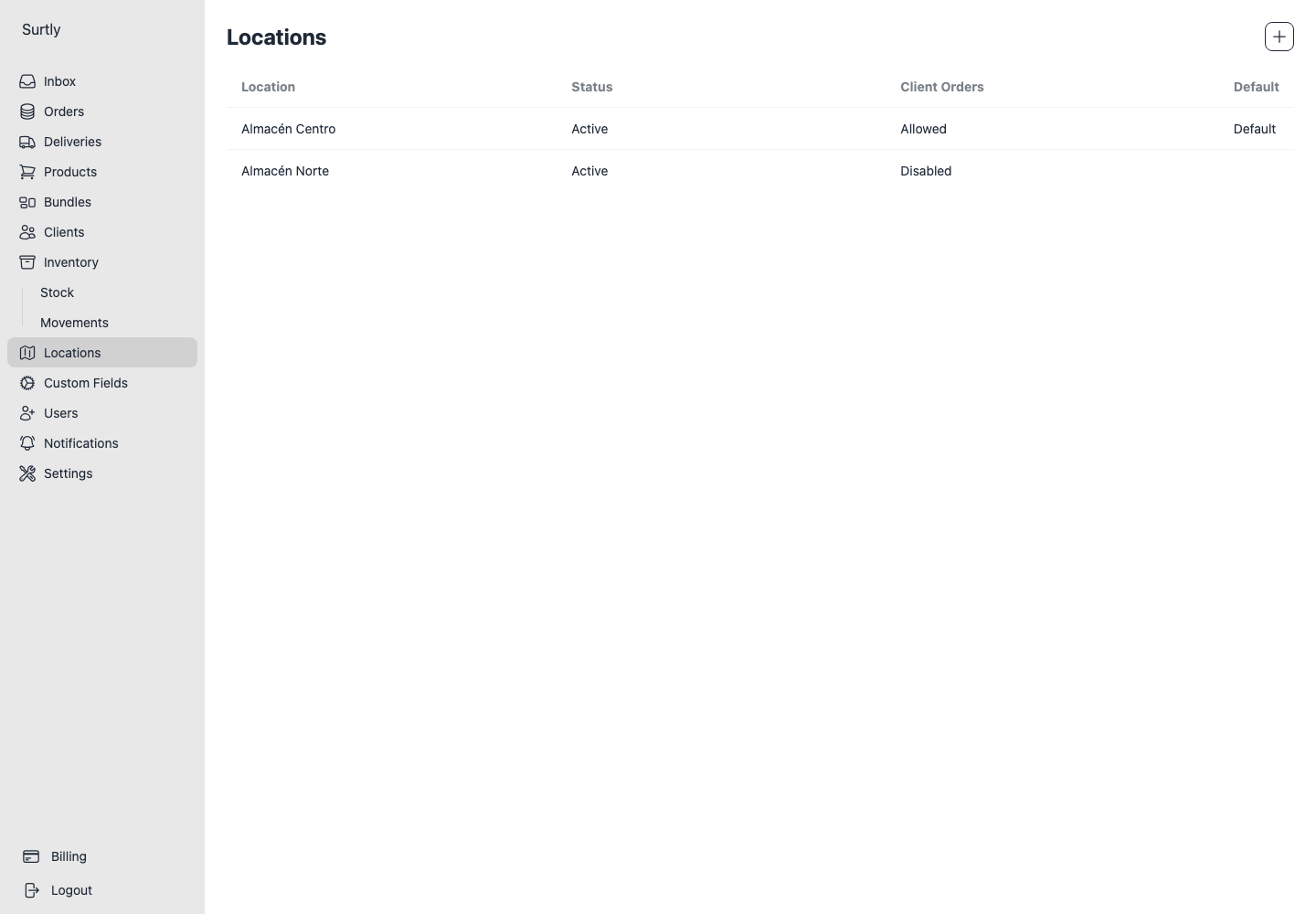
Open Locations → +. Enter the warehouse name and invoice code, choose client-ordering availability, and save. To change the provider default, open the saved location and use its Default switch. Open the location to edit its details or review the clients and delivery-address routes that use it.
Warehouses hold inventory. They are different from client delivery addresses. You can maintain several warehouses, each with its own stock.
Understand the provider default
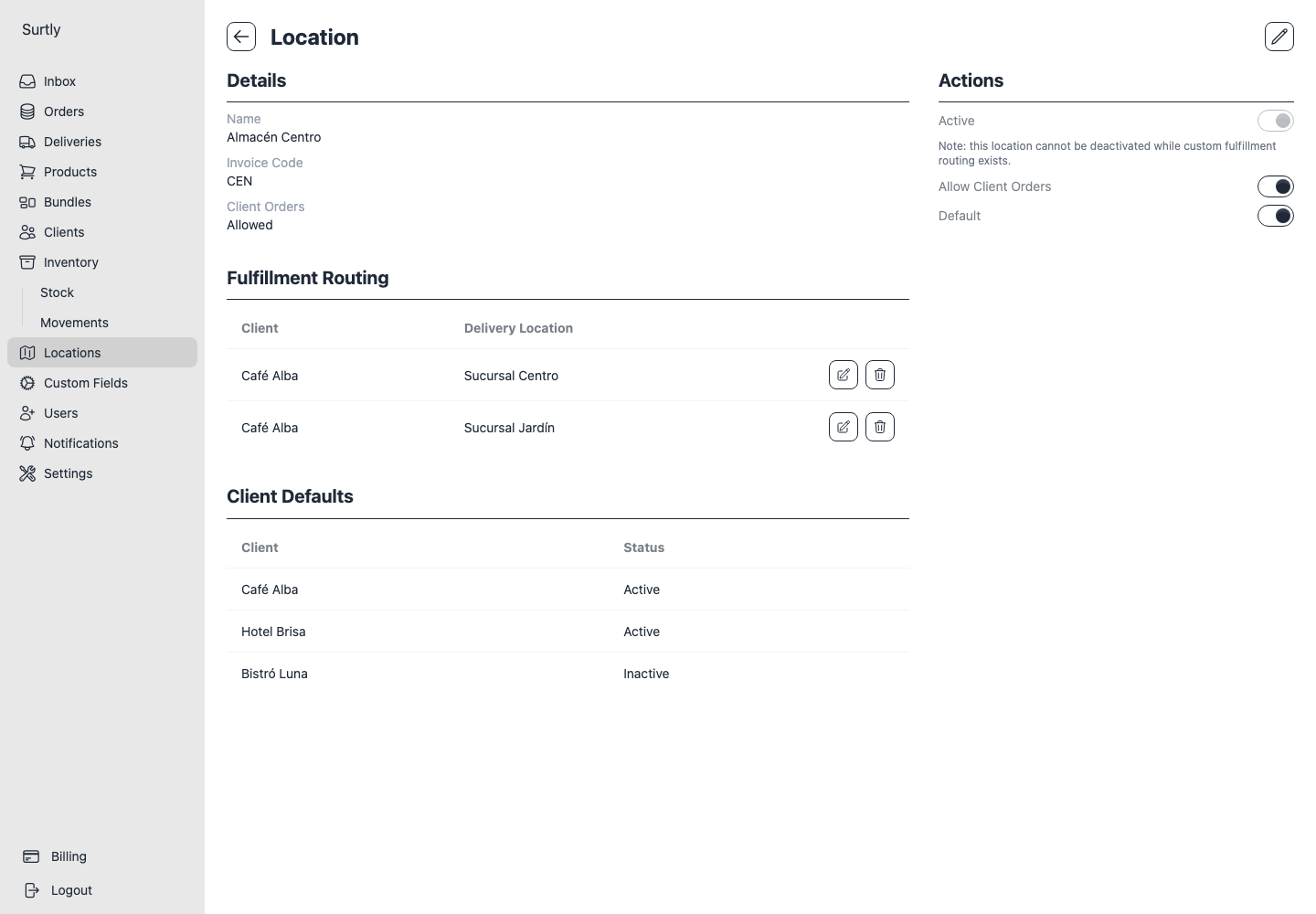
The first warehouse ever created for the provider becomes the default automatically. Marking another warehouse as Default clears the flag on the previous one. Turning the default off does not select a replacement.
An inactive warehouse is ignored during order selection, even if its Default flag remains. Creating a later warehouse does not automatically replace an inactive default. Set the desired active default explicitly.
The provider default is a fallback. A client's own default or a delivery-address route can select another warehouse. See client warehouse selection for the complete order of selection.
Public or restricted ordering
Enable client ordering to make the active warehouse public to your clients. A private warehouse requires explicit client availability grants. Staff creating an order can still explicitly choose an active private warehouse.
Making a public warehouse private clears client defaults and address routes for clients without an explicit grant. The client's access picker only lists private warehouses, so you cannot add a new grant while the warehouse is public.
- On the warehouse page, record the client defaults and address routes that should remain.
- Turn off Allow Client Orders to make the warehouse private. Clients without an existing grant lose access at this point.
- Open each affected client and add a warehouse availability grant.
- Restore the required client defaults and address routes. Adding a grant does not restore cleared settings automatically.
Deactivate safely
Review the location's client defaults and Fulfillment Routing table. Use a routing row's pencil to reassign it or its trash button to remove it before deactivating; remaining routes block deactivation. Removing a route leaves the delivery address in place.
Deactivation clears warehouse availability grants and client defaults. It does not transfer stock, reassign existing orders, or create a replacement default. Reactivating does not restore removed grants or defaults; configure them again.
Each order uses one warehouse. Surtly does not pool stock across locations, split the order, or choose another warehouse when the selected one lacks stock. Product stocked-location scope also applies. There is no warehouse-specific price list in these settings.