 surtly
Update inventory with CSV
Download a template, preview changes, and apply stock updates.
Download and edit the template
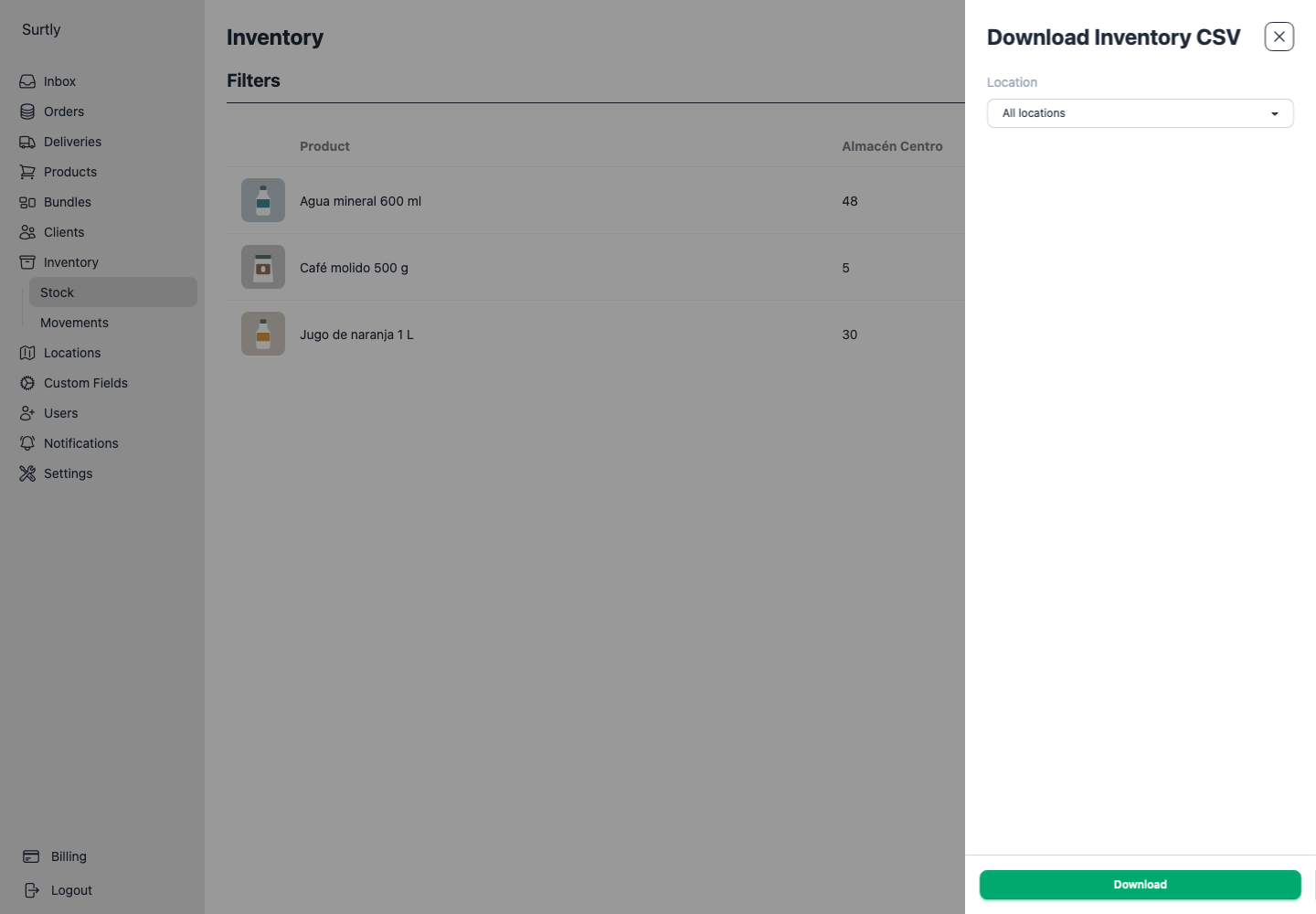
Open Inventory → Stock and use Download inventory CSV. Choose one active warehouse or all active warehouses, then download. The template includes eligible active products within their stocked-location scope.
Edit Quantity (Edit). Keep the identifying columns intact so each row continues to refer to the correct product and warehouse. Enter whole, nonnegative quantities; leave a row blank to skip it. Blank is not the same as zero.
Keep the required headers exactly as downloaded: product_id, location_id, and Quantity (Edit). Do not rename the quantity column to quantity. Keep only one entered row per product/warehouse pair: duplicate entered rows are rejected, not added together.
Choose the operation
| Operation | Meaning of Quantity (Edit) |
|---|---|
| In (Inbound) | Units to add. |
| Out (Outbound) | Units to remove. |
| Adjust | New on-hand quantity, including committed units. |
For Inbound and Outbound, zero adds or removes nothing. For Adjust, zero is an explicit on-hand target and may fail if committed stock would make available stock negative.
Example: Adjust versus the grid
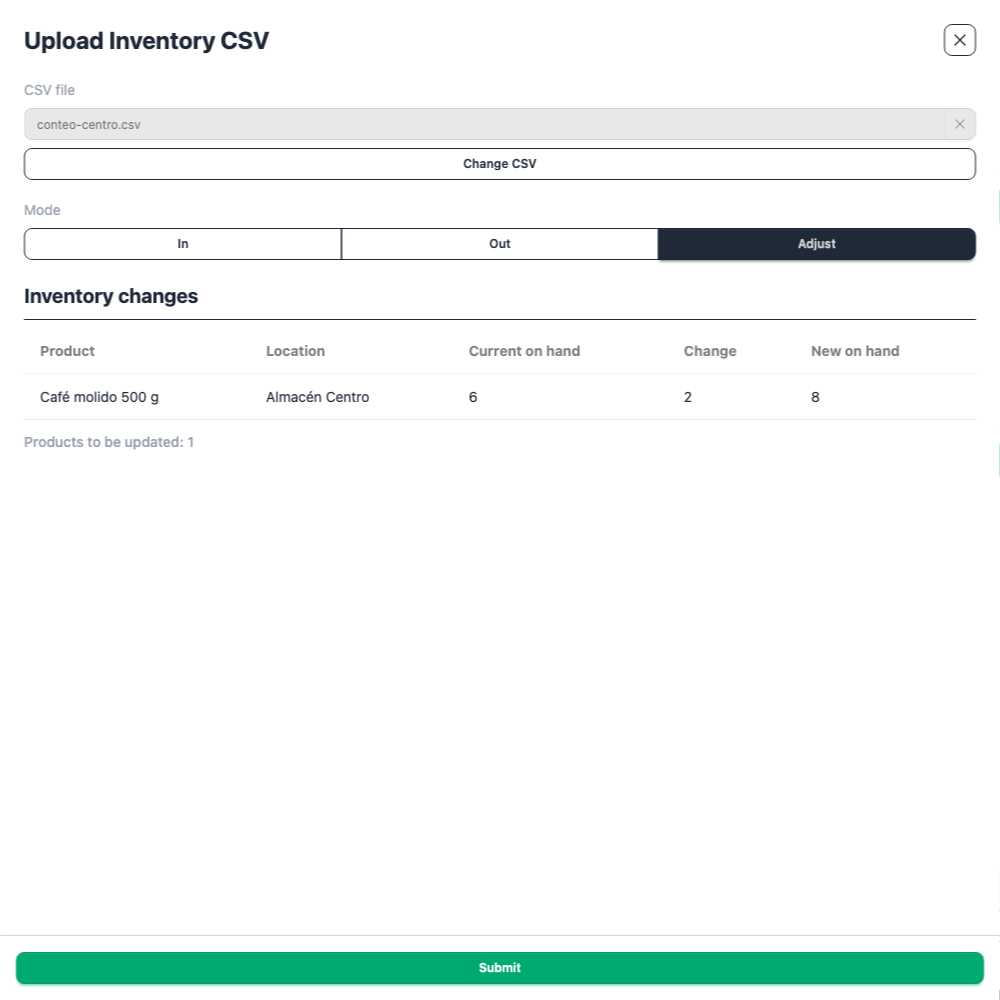
Start with 5 available + 1 committed = 6 on hand.
- CSV Adjust to 8 creates a +2 movement, leaving 7 available + 1 committed = 8 on hand.
- The grid set to 8 creates a +3 movement, leaving 8 available + 1 committed = 9 on hand.
CSV calculates the adjustment against available plus committed stock. It rejects any result with negative available stock, including for products that allow orders without stock.
Preview and apply
- Choose Upload inventory CSV and select the operation.
- Upload your file, choose Preview, and review the result.
- Correct row errors such as inactive or unknown products/warehouses, out-of-scope combinations, invalid quantities, or insufficient available stock.
- Choose Submit once the preview is valid and contains at least one changed row.
- Refresh and inspect stock and the resulting movements.
If stock changed after preview, generate a fresh preview before applying. Updates are applied warehouse by warehouse. After an execution error, check which movements succeeded before retrying; a failed batch may still have updated some warehouses.
Fix a rejected or outdated preview
For example, removing 8 coffees when only 5 are available is rejected. The 1 committed unit does not cover the shortage. Correct the quantity or the stock record before trying again.
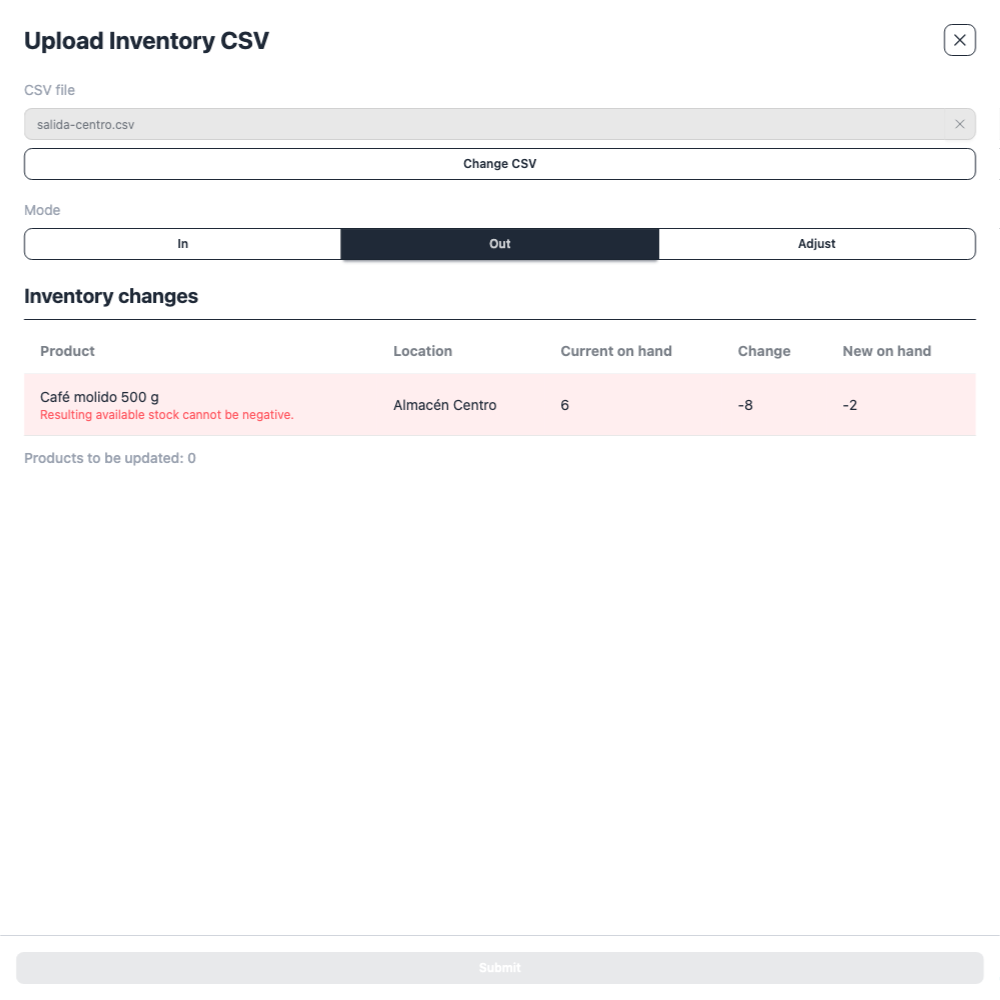
- Fix row errors in your file and select the corrected file again; this clears the old preview.
- To refresh a stale preview using the same file, click the intended operation again (In, Out, or Adjust). This restores Preview.
- Choose Preview, inspect the new quantities and errors, and only then choose Submit.
Skipped rows are hidden in the preview table. Submit also stays disabled if there are no changed rows, even without errors. Check for blank quantities, zero Inbound/Outbound quantities, or Adjust targets that already match on-hand stock.