 surtly
Read your inventory
Understand available, committed, and total stock by warehouse.
Open the stock view
Open Inventory → Stock. Filter by product, warehouse, or supported product custom fields. With several warehouses shown, compare the available quantity in each warehouse column. With one warehouse selected, the view shows its available, committed, and total quantities.
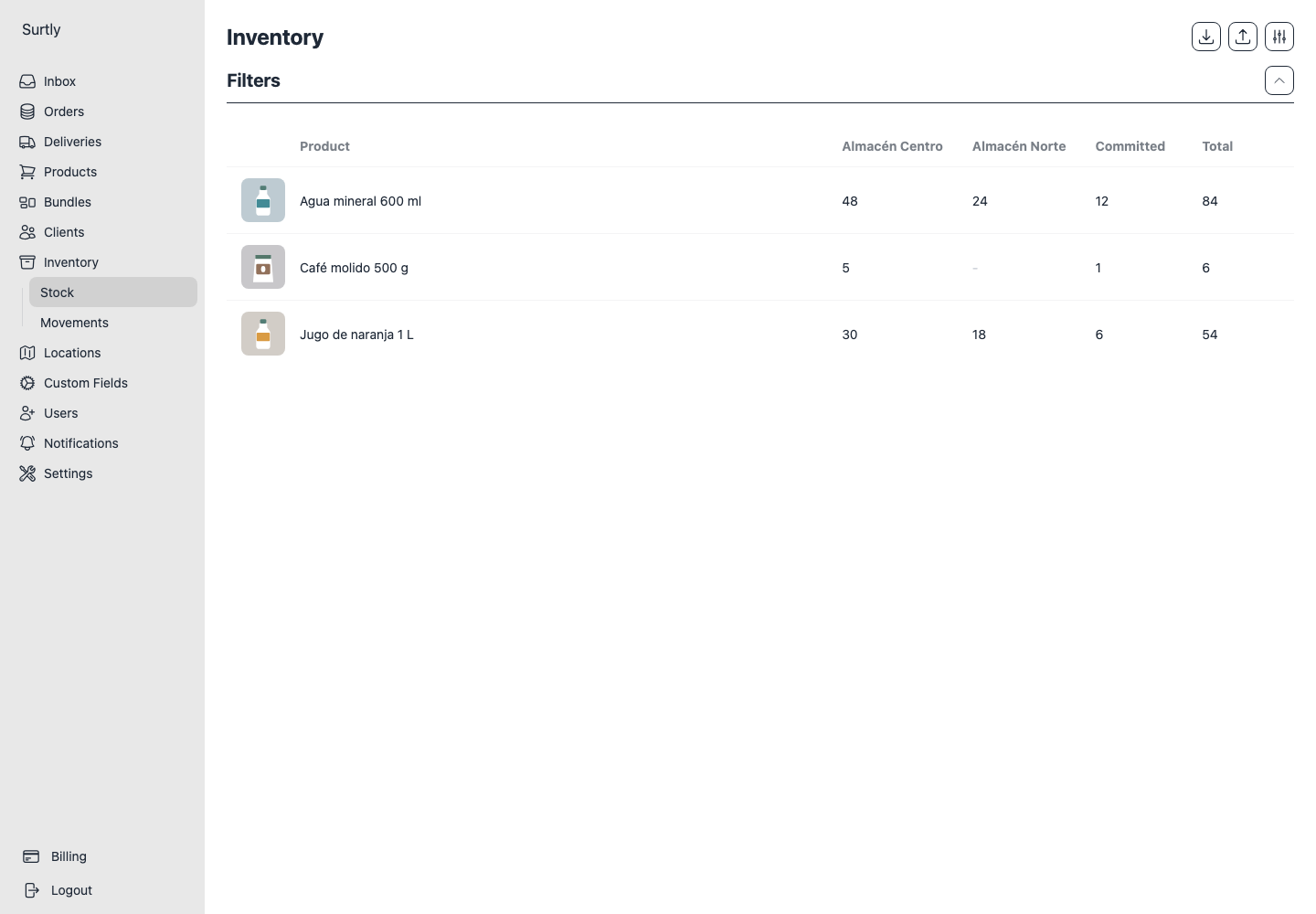
Read the quantities
| Quantity | Meaning |
|---|---|
| Available | The stock quantity used to check new orders. |
| Committed | Stock displayed separately as committed. |
| Total / on hand | Available plus committed. |
| Dash | The product is not stocked at that warehouse under its current assignments. |
Totals reflect the warehouses included in the view and the product's scope. Excluded or inactive warehouses are not represented as a complete physical-stock total. Zero stock and a dash have different meanings.
Choose the right update
Use Inbound or Outbound movements to record quantities received or removed. Use a grid adjustment to enter a new available quantity. Use CSV Adjust to enter an on-hand count that includes committed units.
Refresh and review stock after operational changes. Fulfillment, delivery, and payment are separate order states; do not use one status alone as a physical stock count.
If expected records are missing, review and clear remembered list filters. A previous selection can still apply after returning to the page.