 surtly
Adjust stock in the grid
Set a revised available quantity and review the saved result.
Enter the corrected available quantity
Open Inventory → Stock and select the adjustment control in the upper-right corner. Edit only the product/warehouse cells that need correction. Enter a nonnegative whole number for the new available quantity.
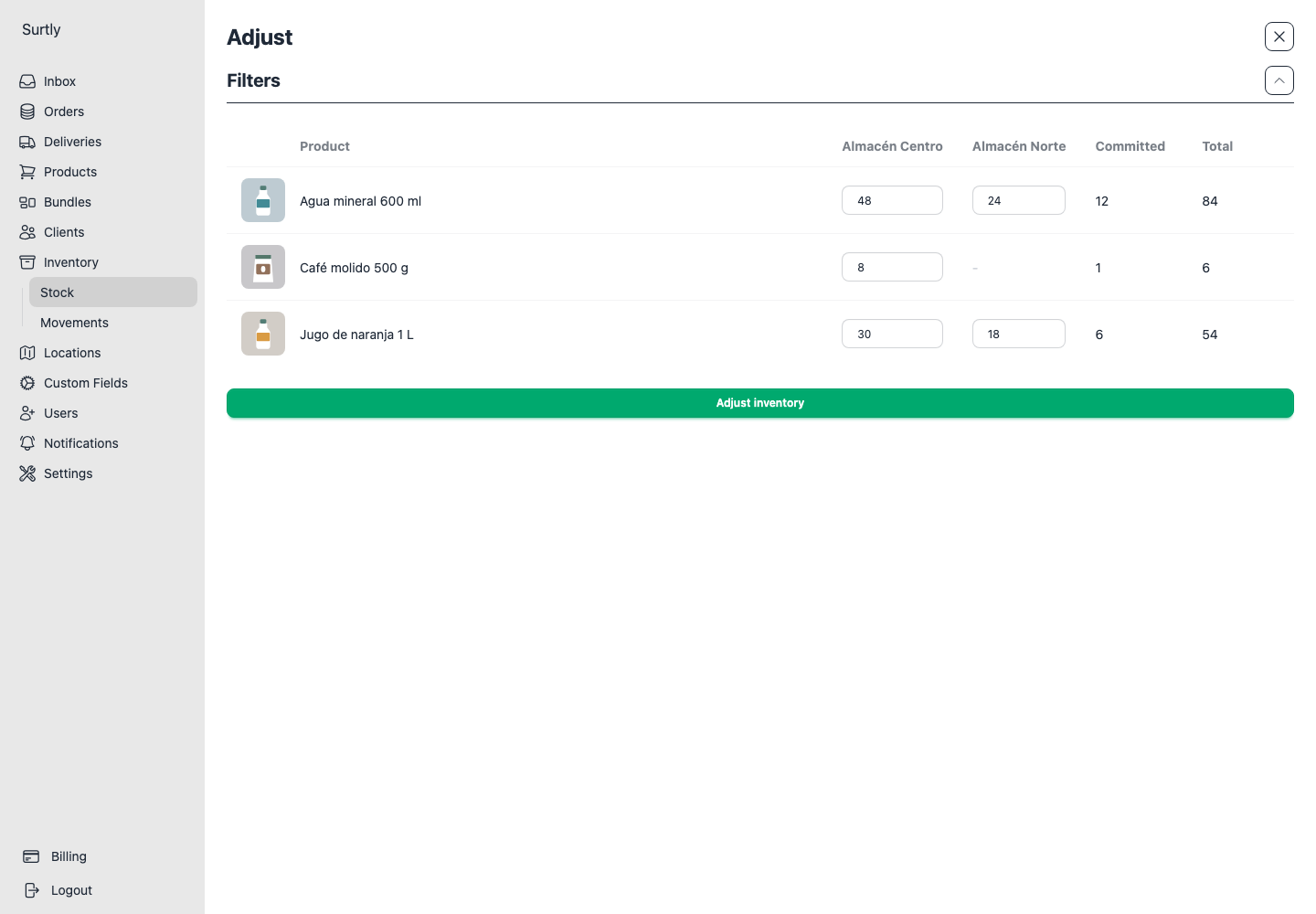
Review and save
Choose Adjust inventory and confirm. Surtly creates adjustment movements for changed warehouses, then reloads the stock view.
The movement quantity is the entered available quantity minus the previous available quantity. With 5 available and 1 committed, entering 8 creates a +3 adjustment: 8 available + 1 committed = 9 on hand. It does not set the physical total to 8.
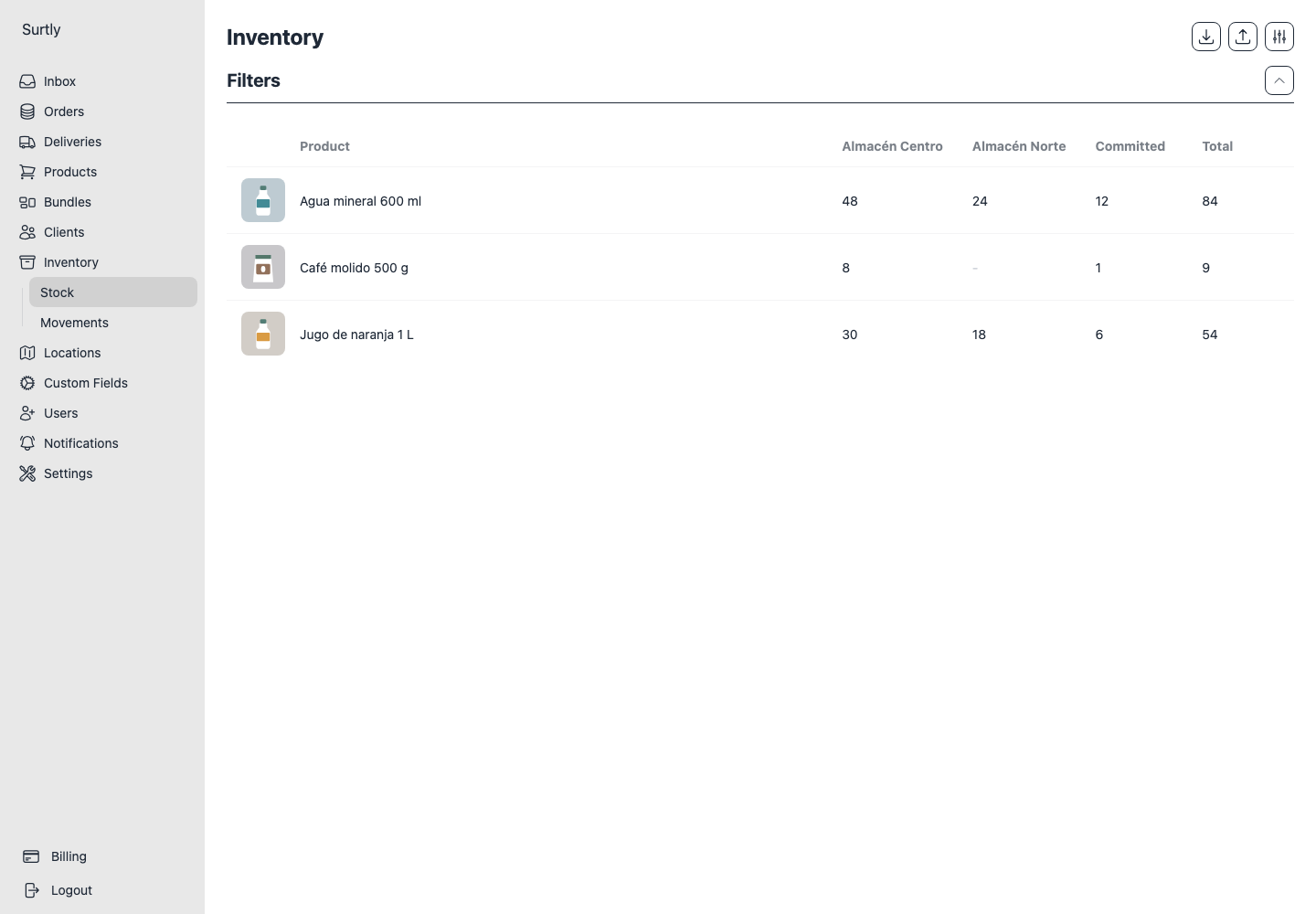
Several warehouses
Saving several warehouses creates separate movements. If saving fails partway through, inspect the resulting movements and refresh the balances before retrying. Some warehouses may already have been updated; the whole batch is not one all-or-nothing operation.
To enter an on-hand count that includes committed units, use CSV Adjust instead.