 surtly
Record stock movements
Record inbound and outbound quantities at a warehouse.
Create a movement
- Open Inventory → Movements and select +.
- Choose Inbound for received stock or Outbound for removed stock.
- Select the warehouse.
- Enter whole product quantities and submit.
- Open the resulting movement and check its direction, warehouse, and quantities.
Manual inventory movements do not have a client. Product stocked-location restrictions still apply. This screen has no dedicated transfer operation between warehouses.
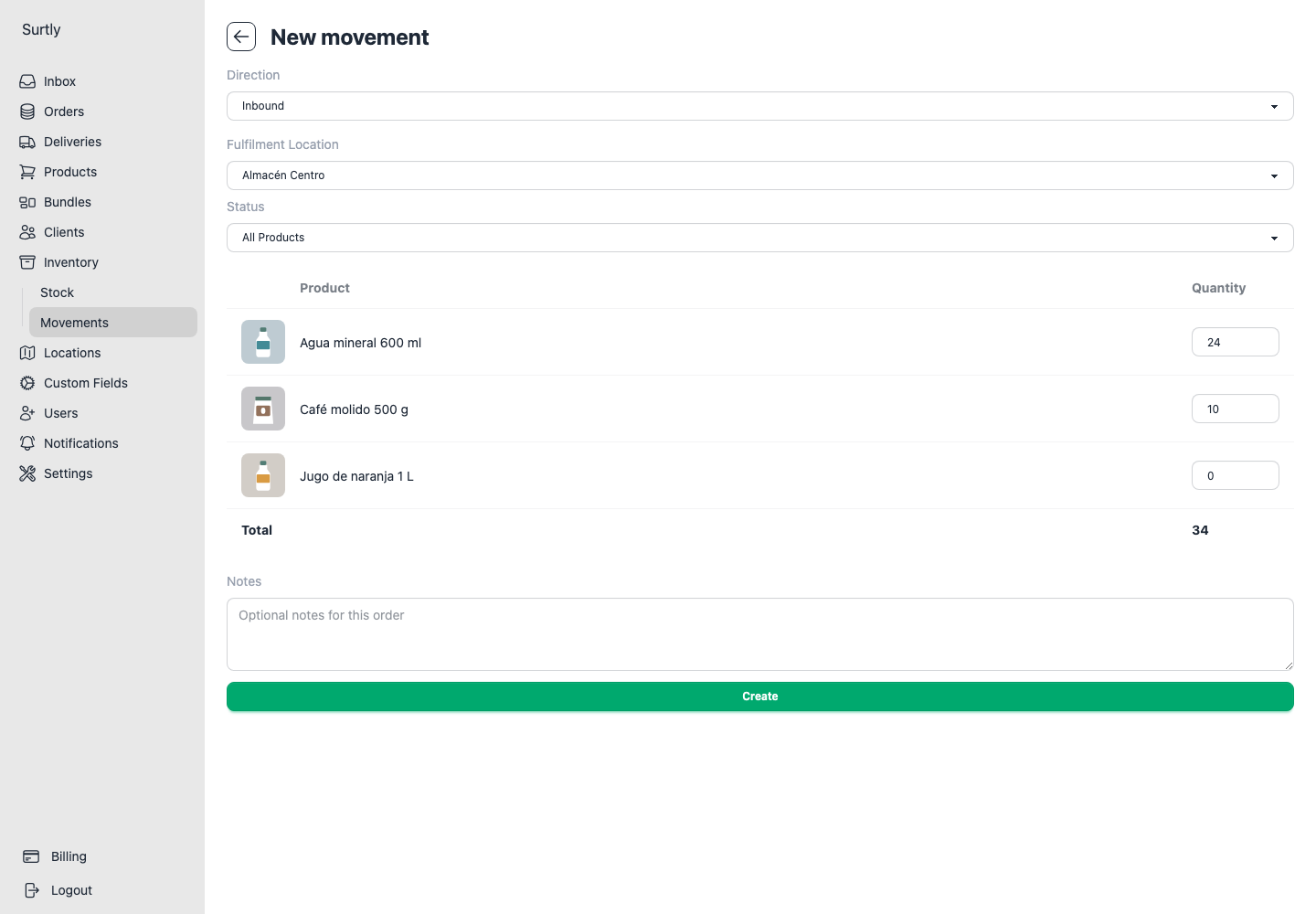
Check outbound quantities
Manual Outbound and CSV Outbound both reject a removal that exceeds the product's available stock at the selected warehouse. Committed units and stock at other warehouses cannot cover that removal. You can remove exactly the available quantity, leaving zero available.
If there is insufficient stock, reduce the quantity or correct the inventory balance before trying again. For manual movements, repeated lines for the same product count together. The product's Allow orders without stock option applies to customer orders; it does not allow an outbound movement to exceed available stock.
Review or cancel a movement
The history can include customer orders as well as manual inventory records. Expand Filters, choose a warehouse, movement type, and date range, then open a row to inspect its products and quantities.
| Movement type | How to read it |
|---|---|
| Order | A customer order; it can include a client. Review its fulfillment and cancellation state. |
| Adjustment | A signed correction from an inventory adjustment. Positive adds units; negative removes units. |
| In | A manual or CSV receipt. A positive quantity adds units. |
| Out | A manual or CSV removal. A positive quantity removes units. |
To trace a count correction, choose Adjustment, the affected warehouse, and the dates of the grid or CSV update. For a CSV Inbound or Outbound update, select In or Out instead. Check the record ID, products, quantities, and cancellation status against your source file or count. Interpret the quantity together with its type: a positive Out quantity is not stock received.
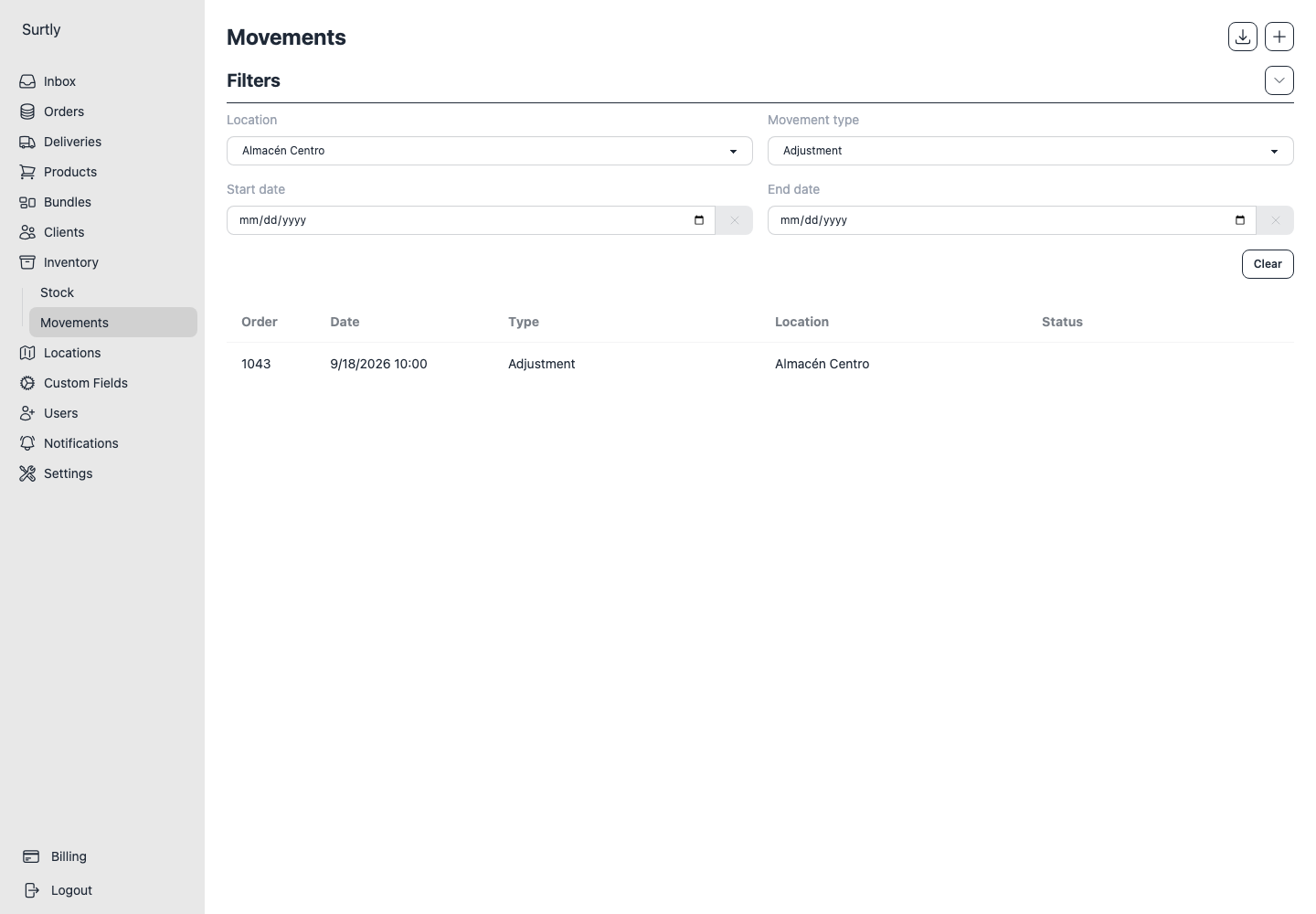
Use Cancel only when offered, then refresh inventory and review the resulting balance. Export matching movement line items for reconciliation; exports use the selected history filters. If an expected record is missing, clear remembered filters first.
For correcting a count instead of recording incoming or outgoing units, use grid adjustment or CSV Adjust, noting their different quantity meanings.