 surtly
Use custom fields
Add business-specific information to products and clients.
Create a field
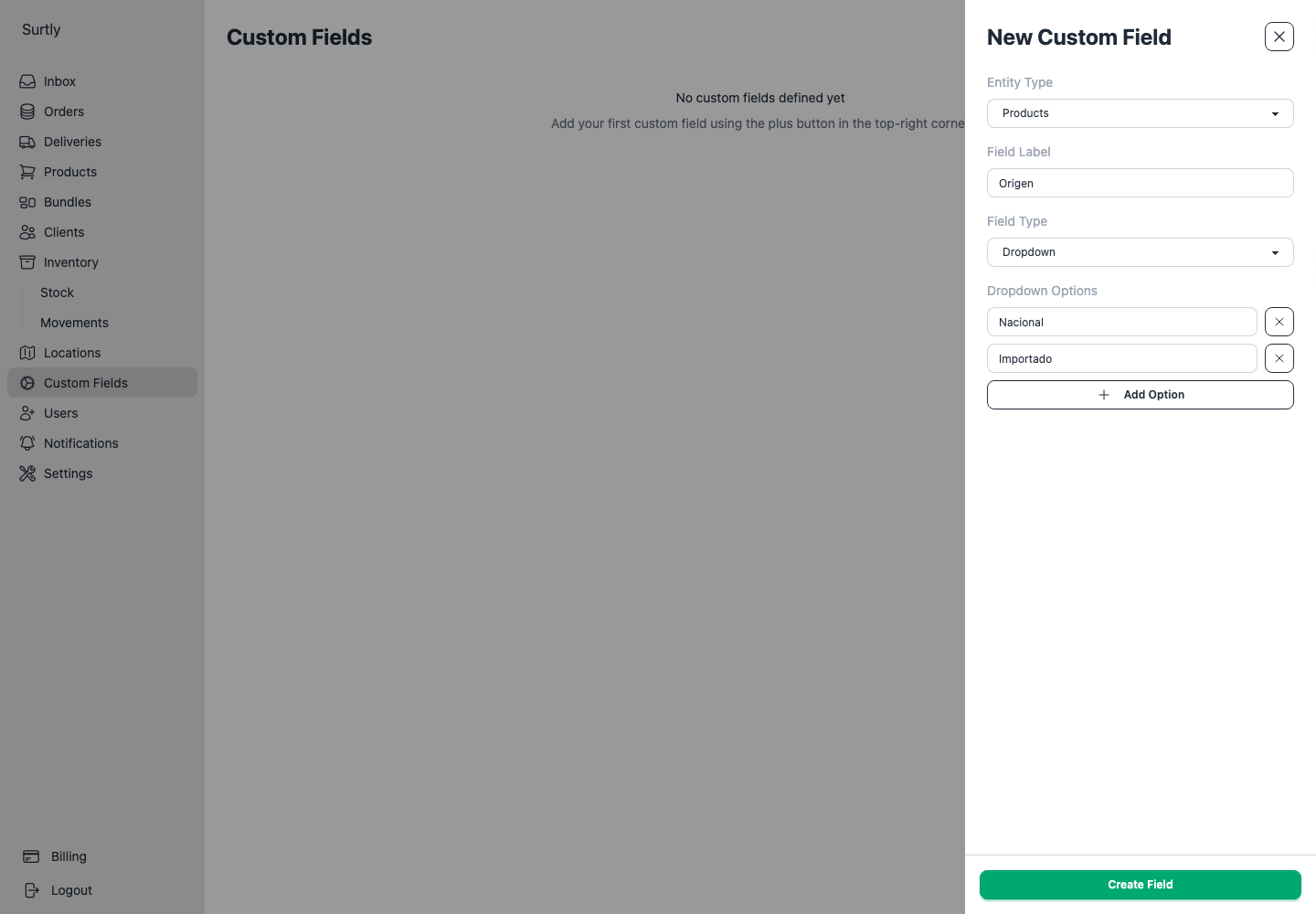
Open Custom Fields → + with Admin access. Create a field for Products or Clients, enter a label, and choose Text, Number, Yes/No, or Dropdown. For a dropdown, add its selectable options. Choose Create Field. New fields are active automatically.
The field appears in the corresponding create/edit form. Enter values on the product or client and save that record.
Edit or deactivate
Edit the label or dropdown options when needed, or change Active, then choose Update Field. The Active control appears when editing a saved field. The entity and field type are fixed after creation; create another field if a different type is required.
Deactivating removes the field from active entry controls. Removing a dropdown option removes it from filtering but does not erase historical saved values using that option.
Filter and export
Supported Yes/No and Dropdown fields can be used in relevant product/client filters. Client custom fields can also target batch availability. Client exports include custom field values.
The current editor does not expose Date fields or custom fields for Orders or Locations. Use order notes for free-form order instructions instead of looking for an order custom-field control.